Understanding the interface
TellDone is organized into five main sections. Here's a quick tour.
Main tabs
Record
The home screen. Tap the microphone button to start a voice recording, or use the text field to type a note. This is where all content creation starts.
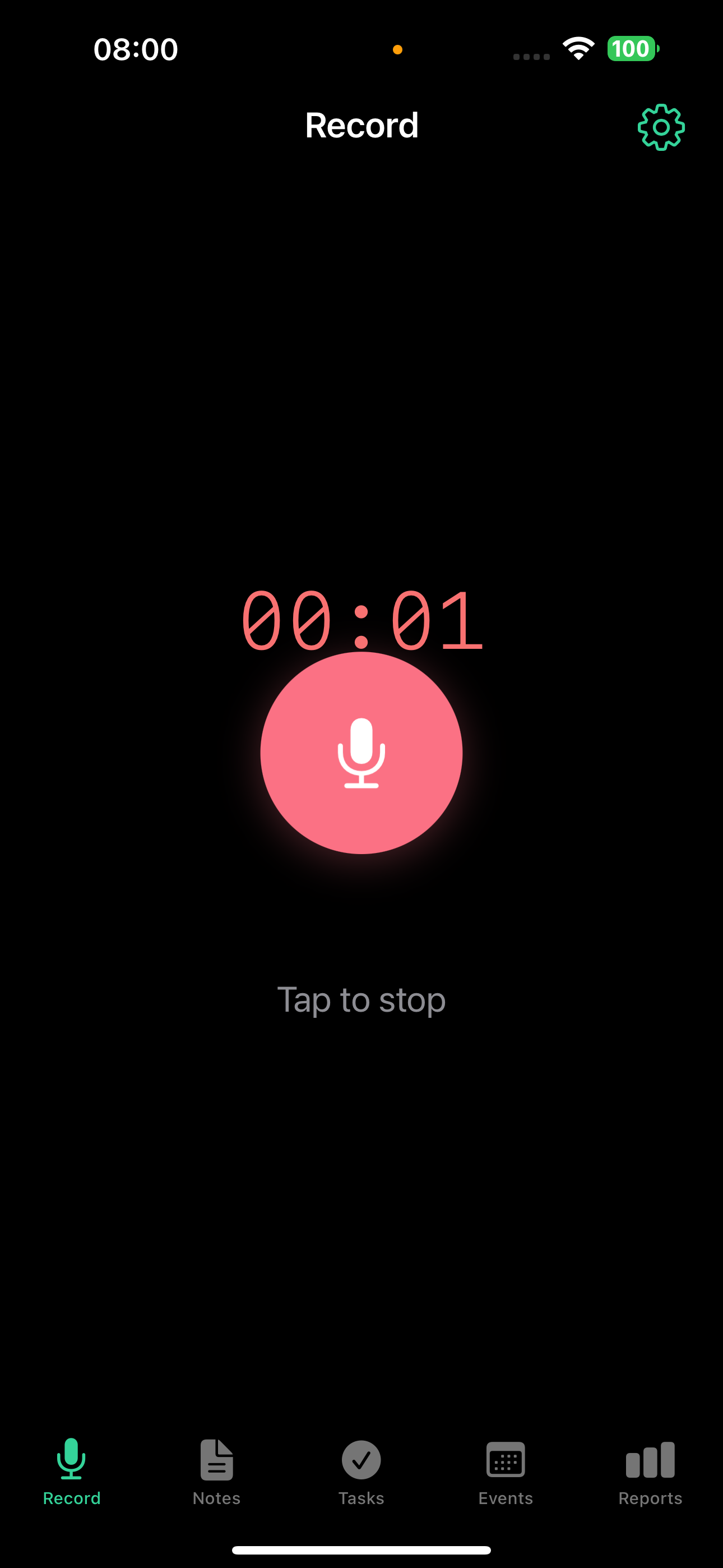
The microphone button is always available - even when you're on another tab, a floating record button lets you start recording from anywhere in the app.
Notes
All your notes in one place. Each note shows its title, type badge, and tags.
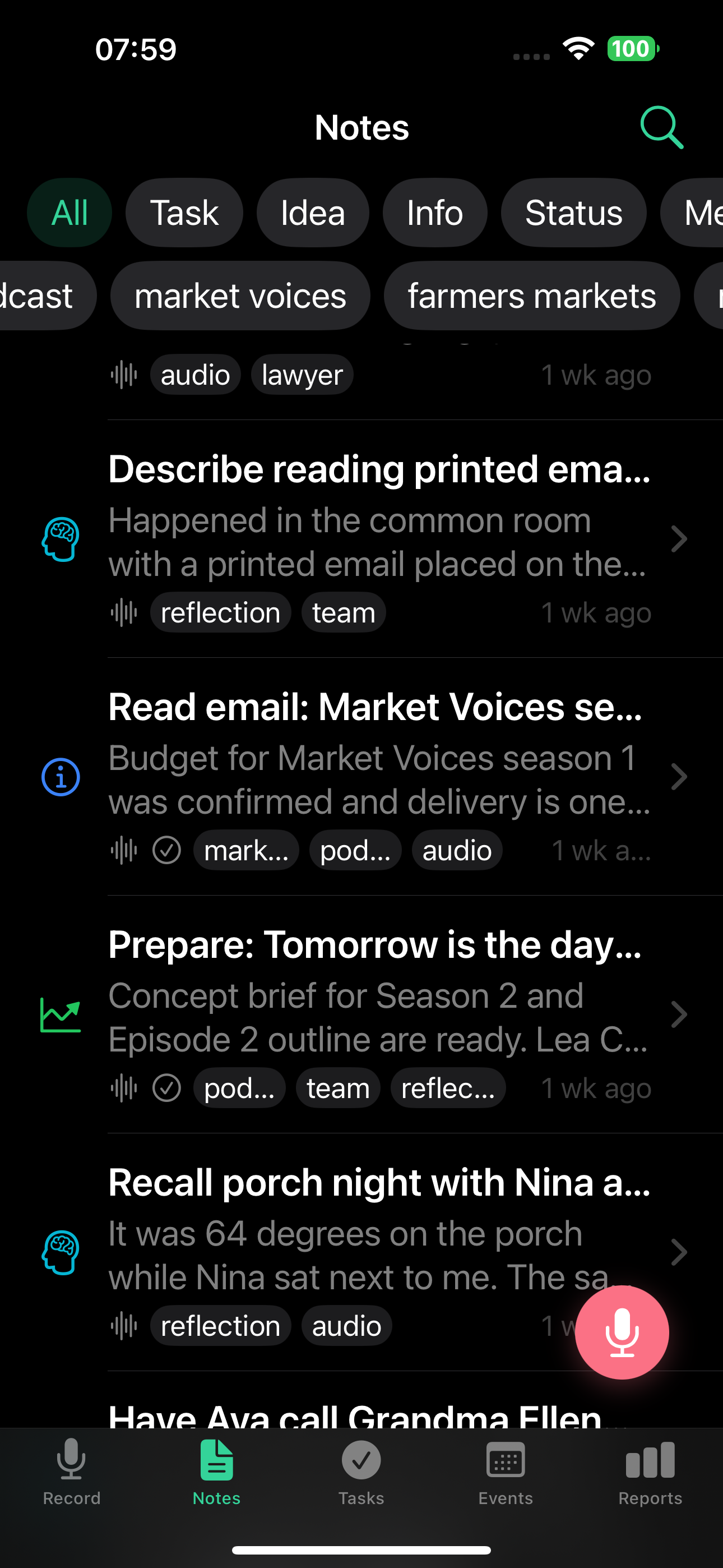
- Filter by type using the chips at the top: All, Task, Idea, Info, Status, Meeting, Event, Reflection
- Filter by tags to narrow down results
- Search to find notes by text
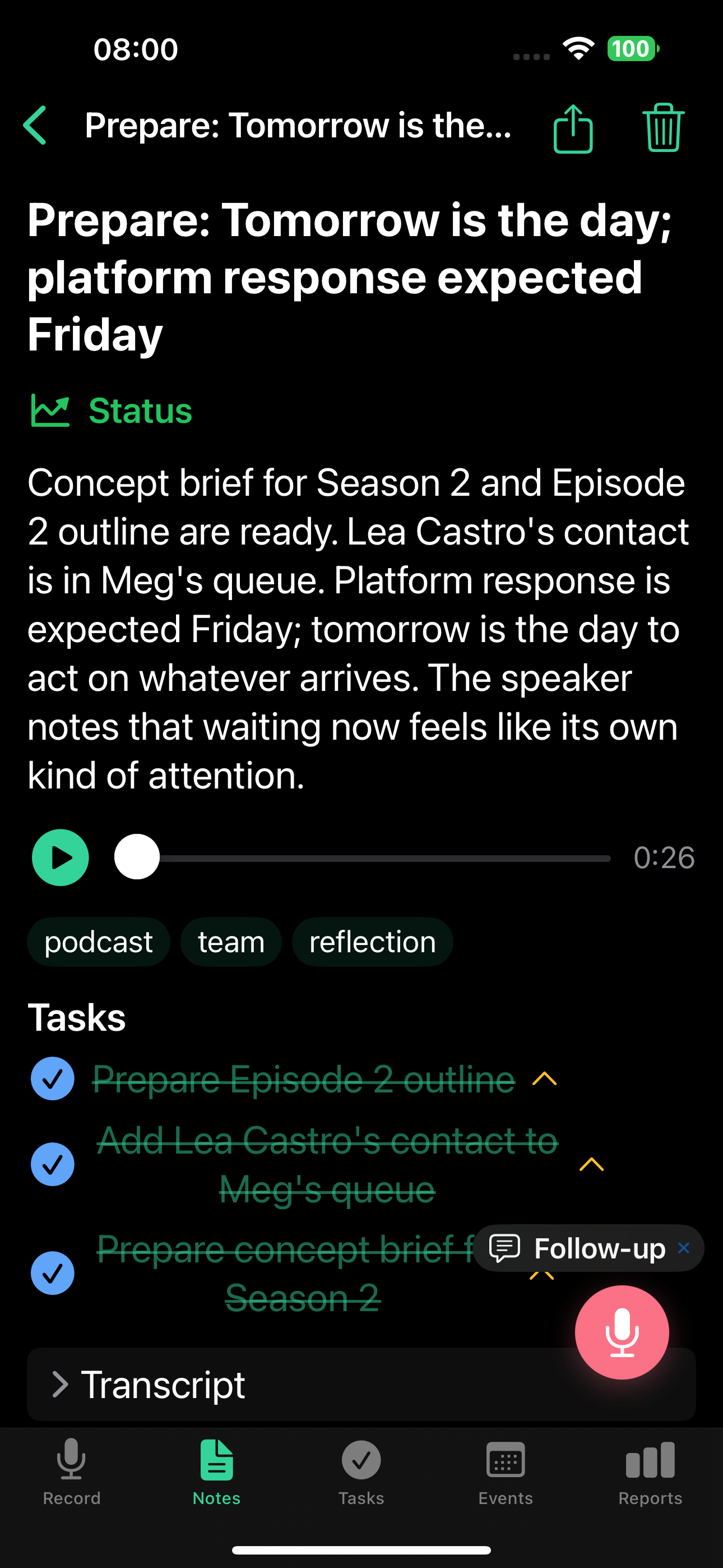
- Tap any note to see the full detail: summary, audio player, extracted tasks, transcript, and a follow-up button
Learn more in the Notes guide.
Tasks
Tasks extracted from your notes. Quick and focused.
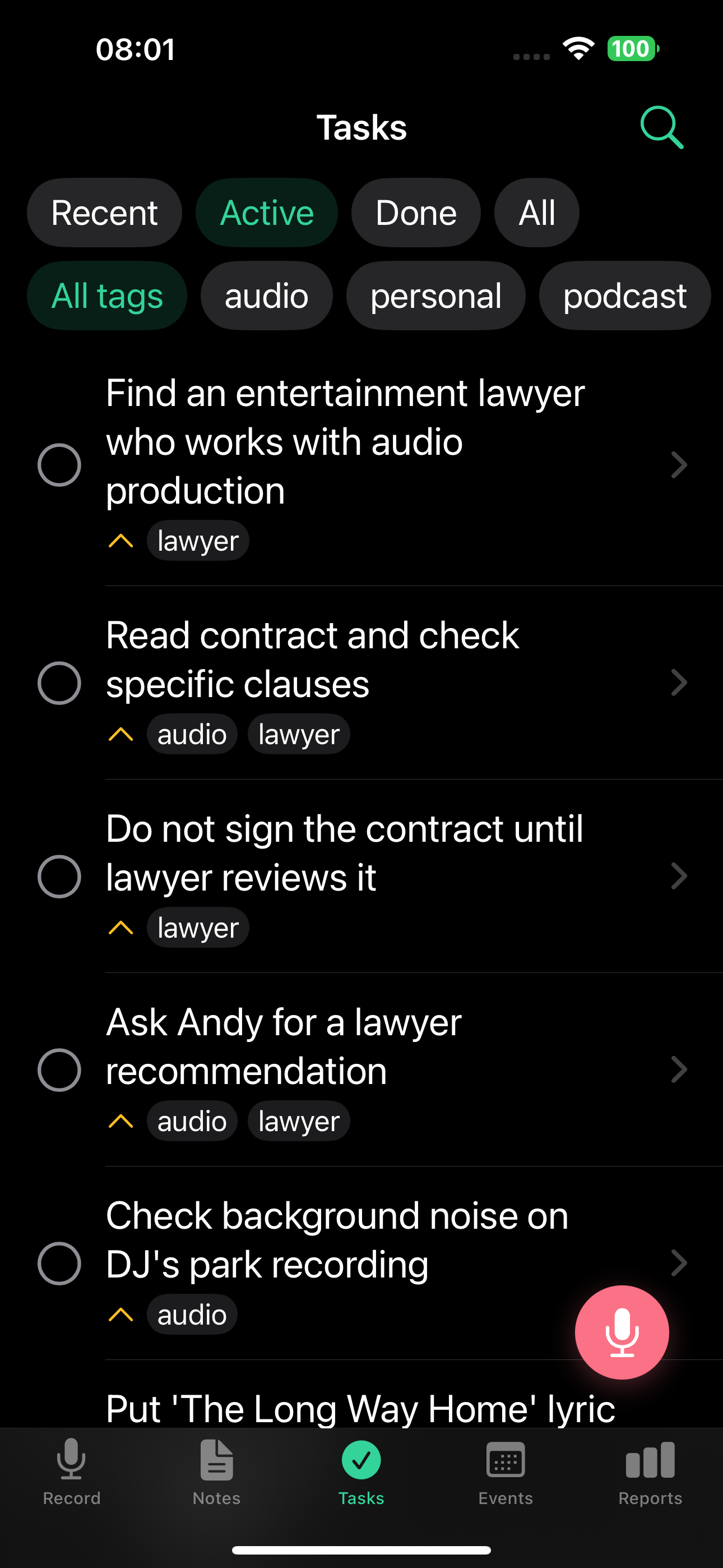
- Filter: All / Active / Done / Recent
- Each task shows its title, priority (high, medium, low), tags, and a checkbox
- Recurring tasks show a recurring badge (circular arrows) - completing one occurrence advances it to the next without archiving it
- Tap a task to see full details, set a deadline, or add a reminder
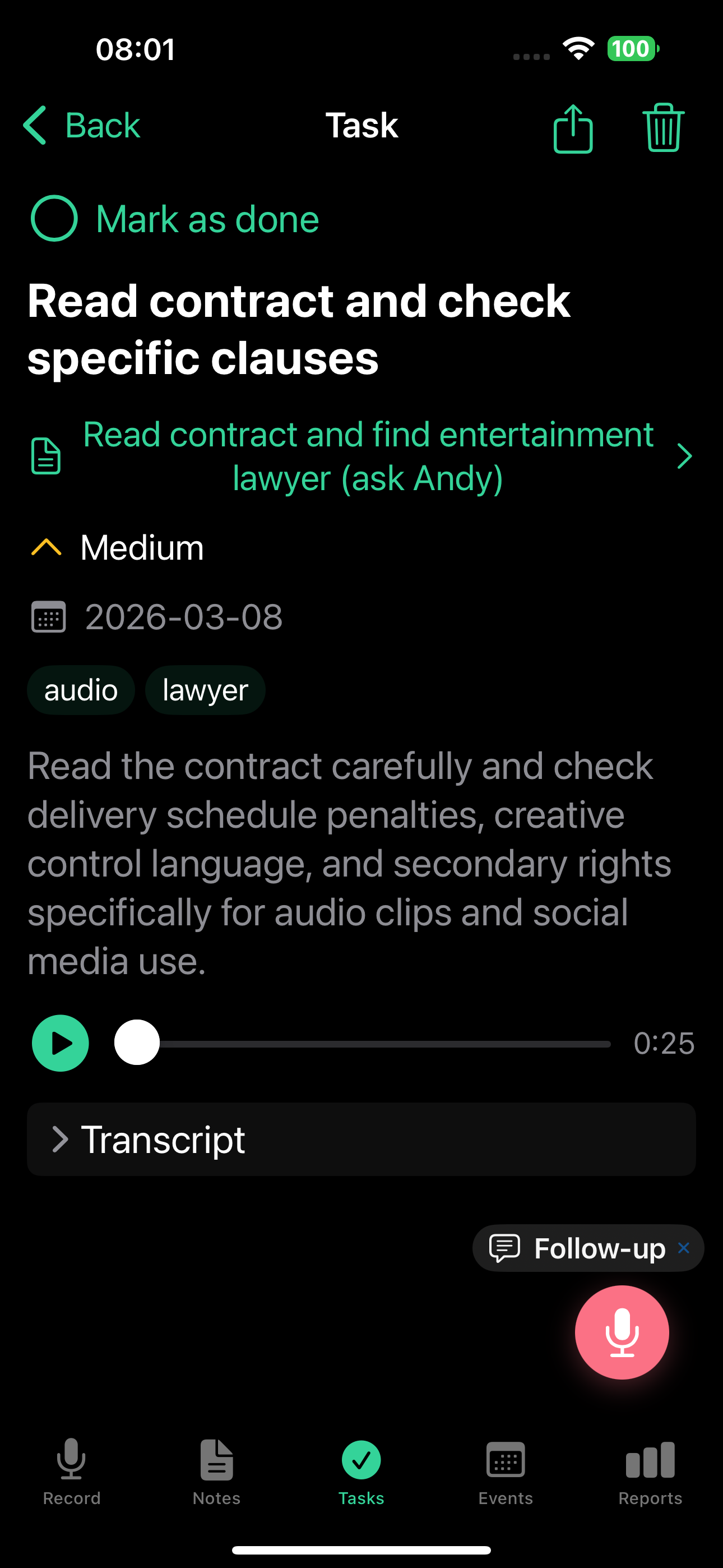
Tasks are created automatically from your voice notes. You can also mark tasks as done just by mentioning it in a new recording - that's Smart Context (Basic plan and above).
Learn more in the Tasks guide.
Events
Calendar events extracted from your notes, grouped by time.
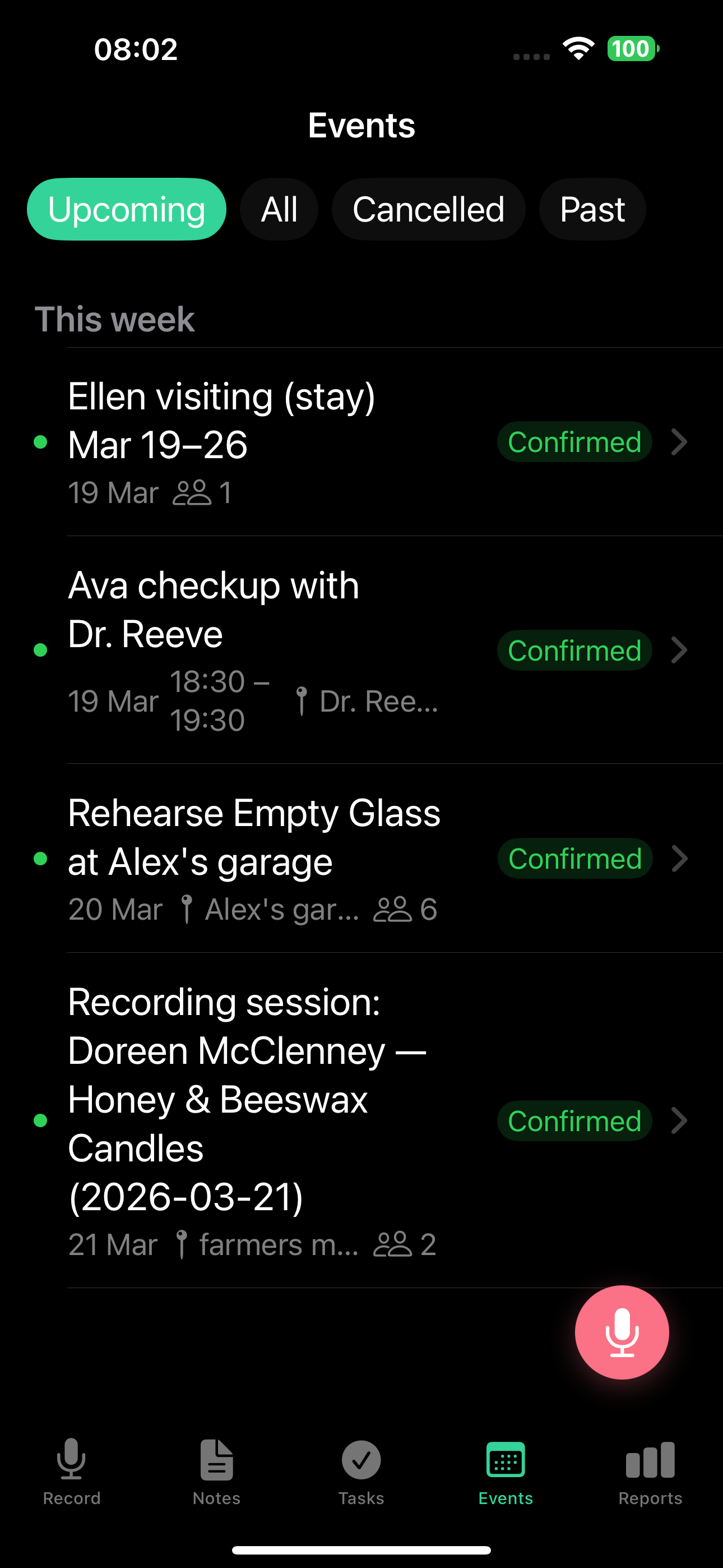
- Groups: Today / Tomorrow / This week / Later / Past
- Each event shows title, date and time, and status (Confirmed, Tentative, or Cancelled)
- Tap an event for full details including attendees and recurrence
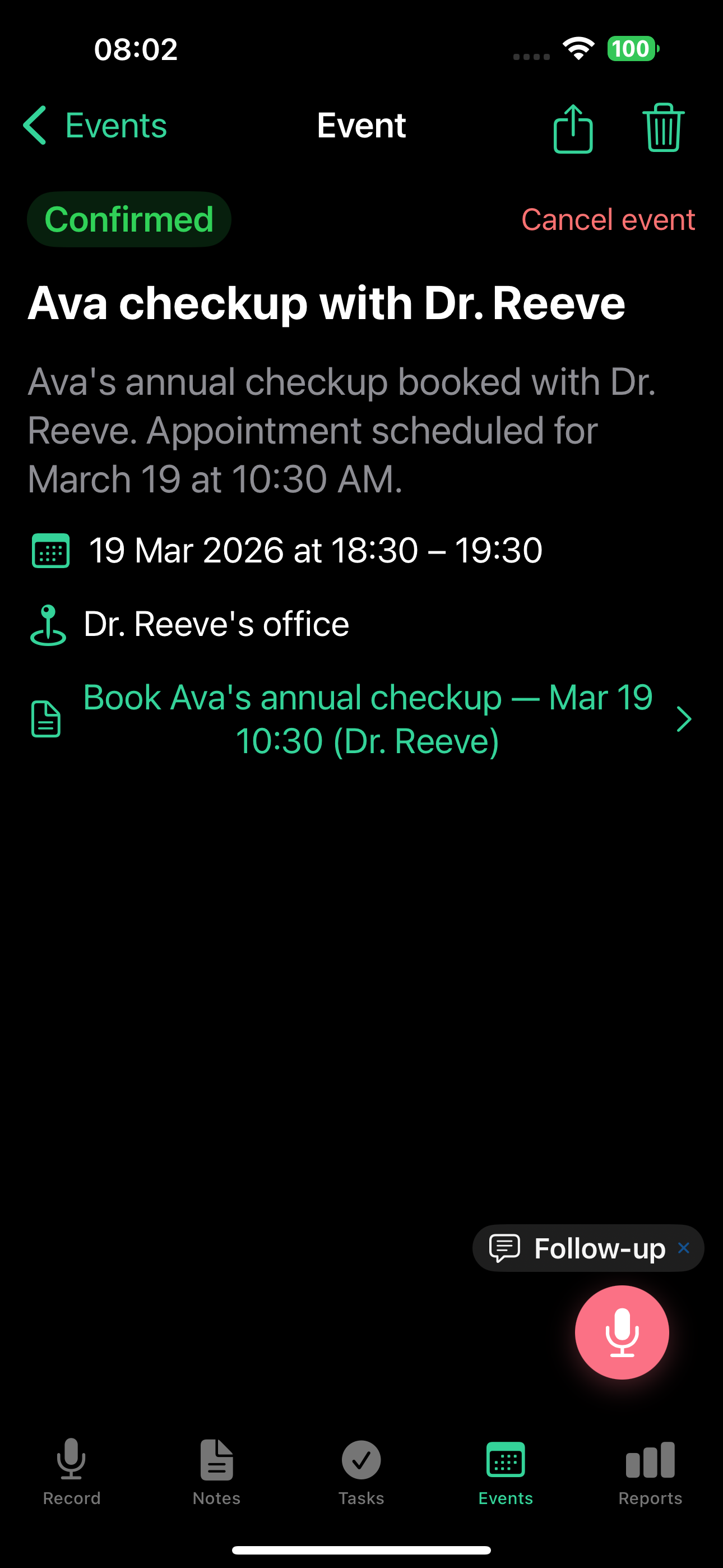
Learn more in the Events guide.
Reports
AI-generated productivity insights.
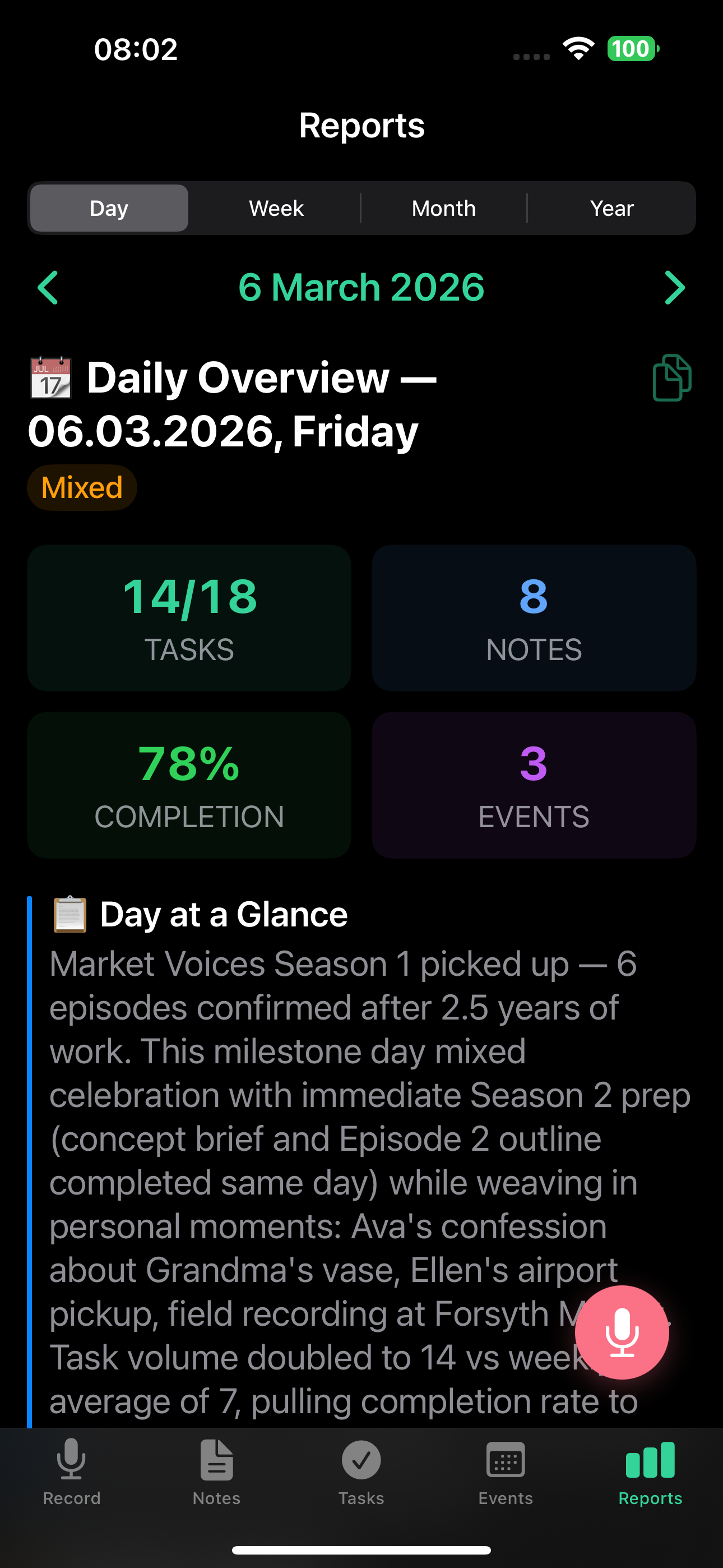
- Daily reports (Basic plan and above) - your day at a glance: key metrics, AI narrative, completed and pending tasks, and a focus score
- Weekly reports (Pro plan and above) - victories, blockers, patterns, and a color-coded week rating (Productive, Mixed, or Tough)
- Monthly reports (Pro plan and above) - executive summary with burnout detection, chronic issues, and an 80/20 analysis
- Yearly reports (Pro plan and above) - a full look back at your entire year
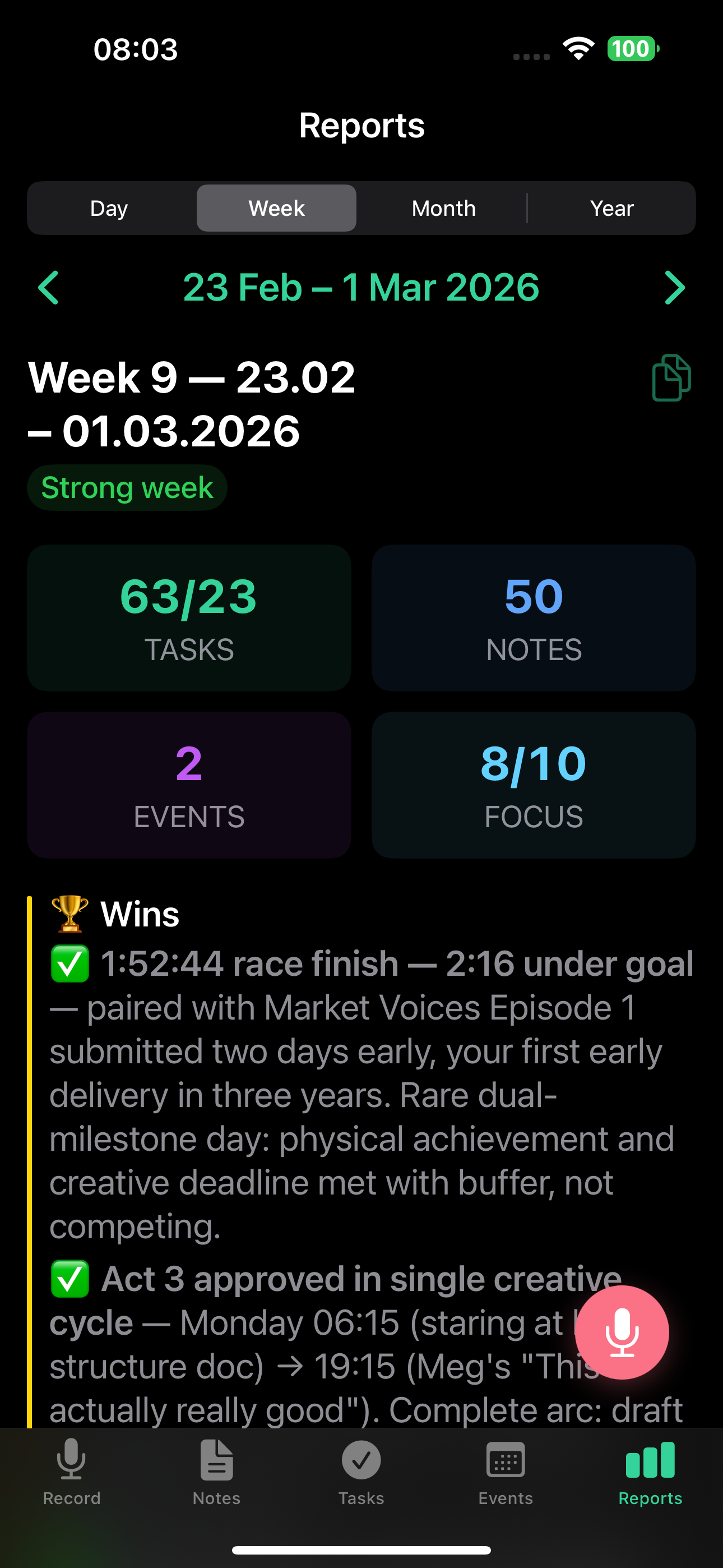
Learn more in the Reports guides.
Good to know
- The floating record button appears on every tab - you can start recording from anywhere
- A bell icon in the Record tab toolbar (and in the web top bar) opens your Inbox - server messages about webhook failures, billing, gift activations, deletion confirmations, and language mismatch notices. The bell badge lights up when there is an unread message, and pulses more strongly when a message requires your action (for example, confirming an account deletion).
- The Settings gear icon opens your configuration - language, integrations, account, and more. See Settings.
- Two languages work independently: your app language (buttons, menus, push notifications, email subjects) and your voice / content language (how AI processes your voice and writes your note titles, summaries, tasks, and report bodies) are separate. A German speaker can use an English interface and still get German summaries. See Appearance and language for the full breakdown.
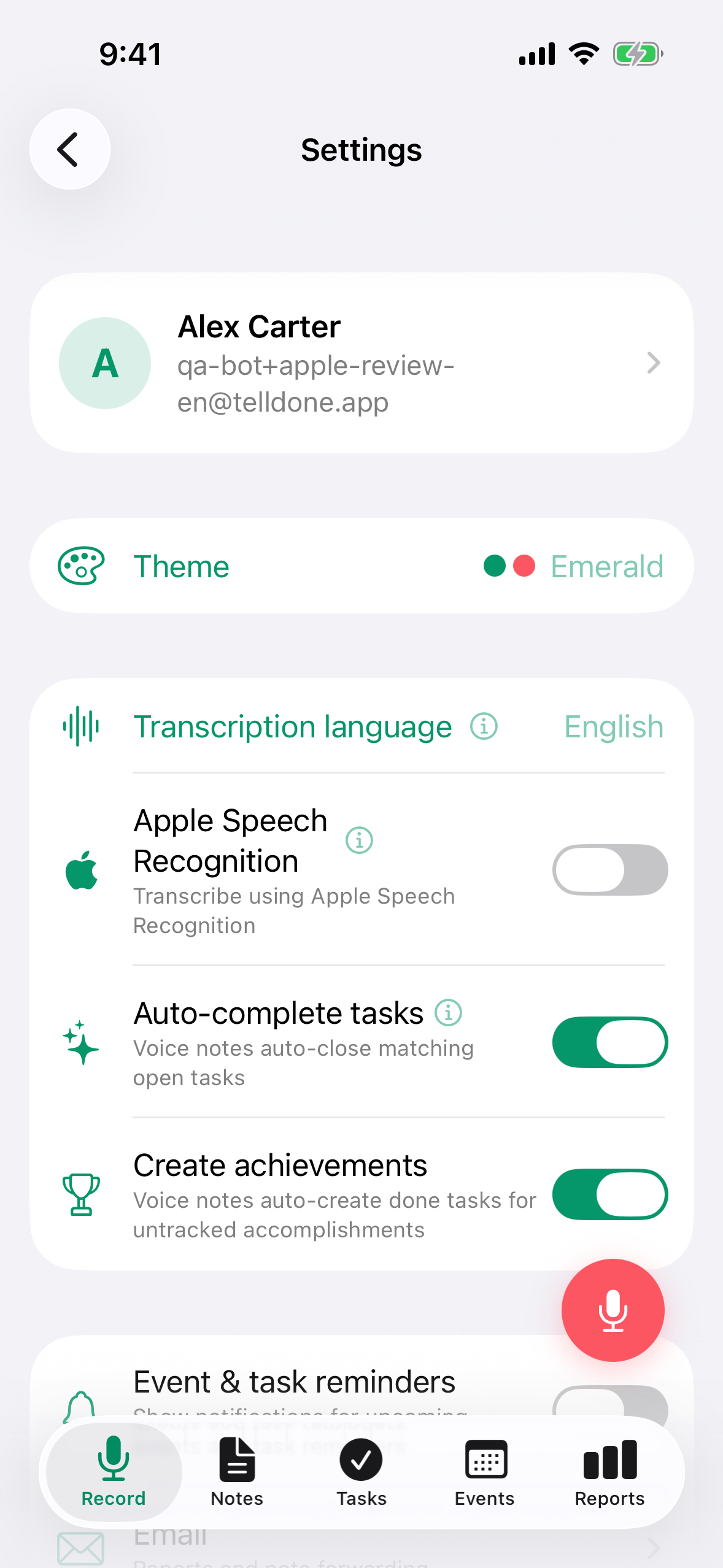
The Settings main screen on iPhone shows, top to bottom: Account, Theme, Integrations, Tags, Email, Usage, Activity, Auto-complete tasks (toggle), Create achievements (toggle), Event & task reminders (toggle), Transcription language, Apple Speech Recognition (toggle), Help & Support.
Replay the tour
If you want to see the onboarding hints again, open Settings, scroll to the Help & Support section, and tap Replay Tour. This resets all onboarding hints and the welcome carousel so you can go through them again.
What's next?
Now that you know your way around, explore the features in depth:
- Recording voice notes - all recording options and tips
- Notes - types, tags, search, archive, and follow-ups
- Tasks - priorities, deadlines, reminders, and Smart Context
- Events - calendar events, attendees, and recurring events
- Reports - daily, weekly, monthly, and yearly AI insights
- Integrations - connect with Todoist, Notion, Apple Calendar, and more
- Settings - customize TellDone to fit your workflow