Events
When you mention a meeting, call, or event with a date in your recording, TellDone automatically creates a calendar event. Up to 3 events per note. Once an event exists, you can edit any field directly on the event detail screen.
Event list
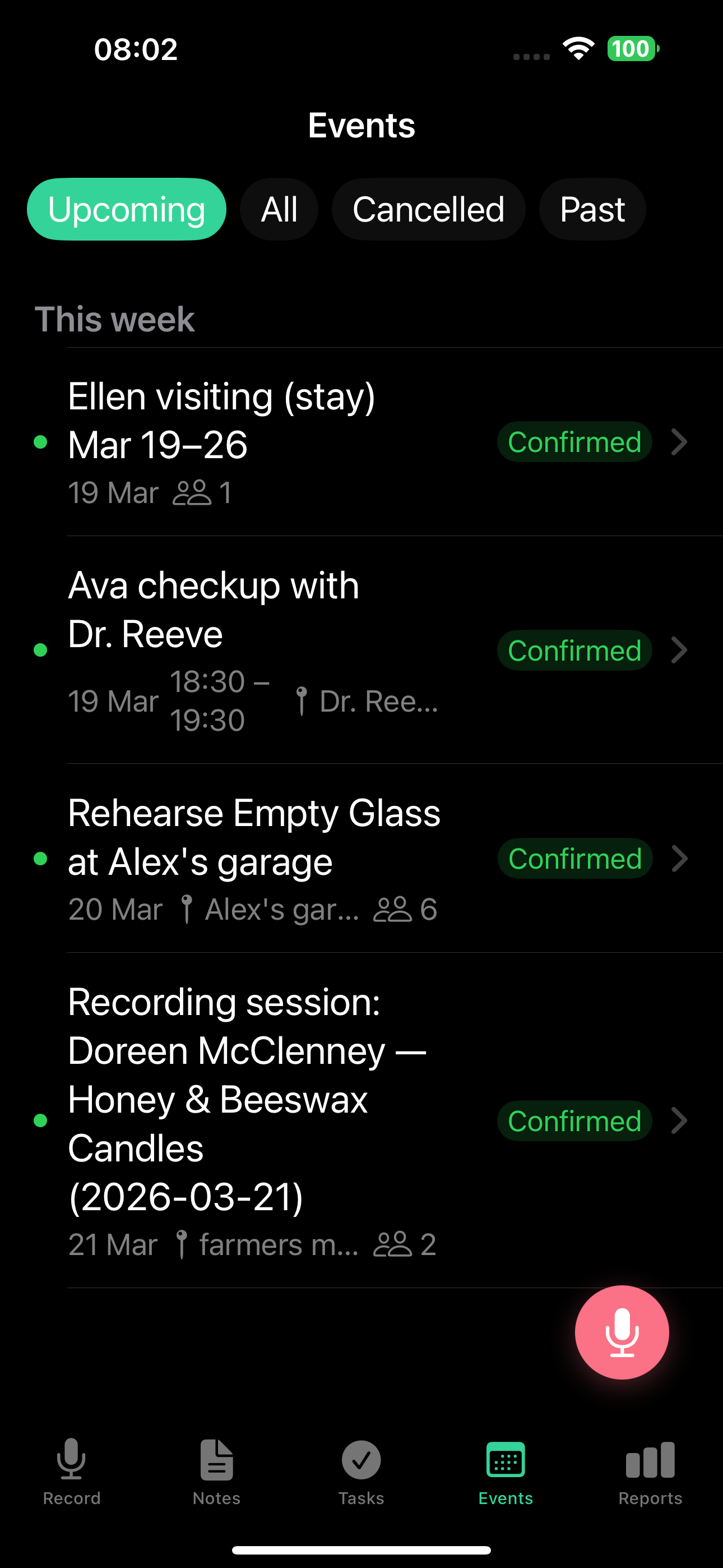
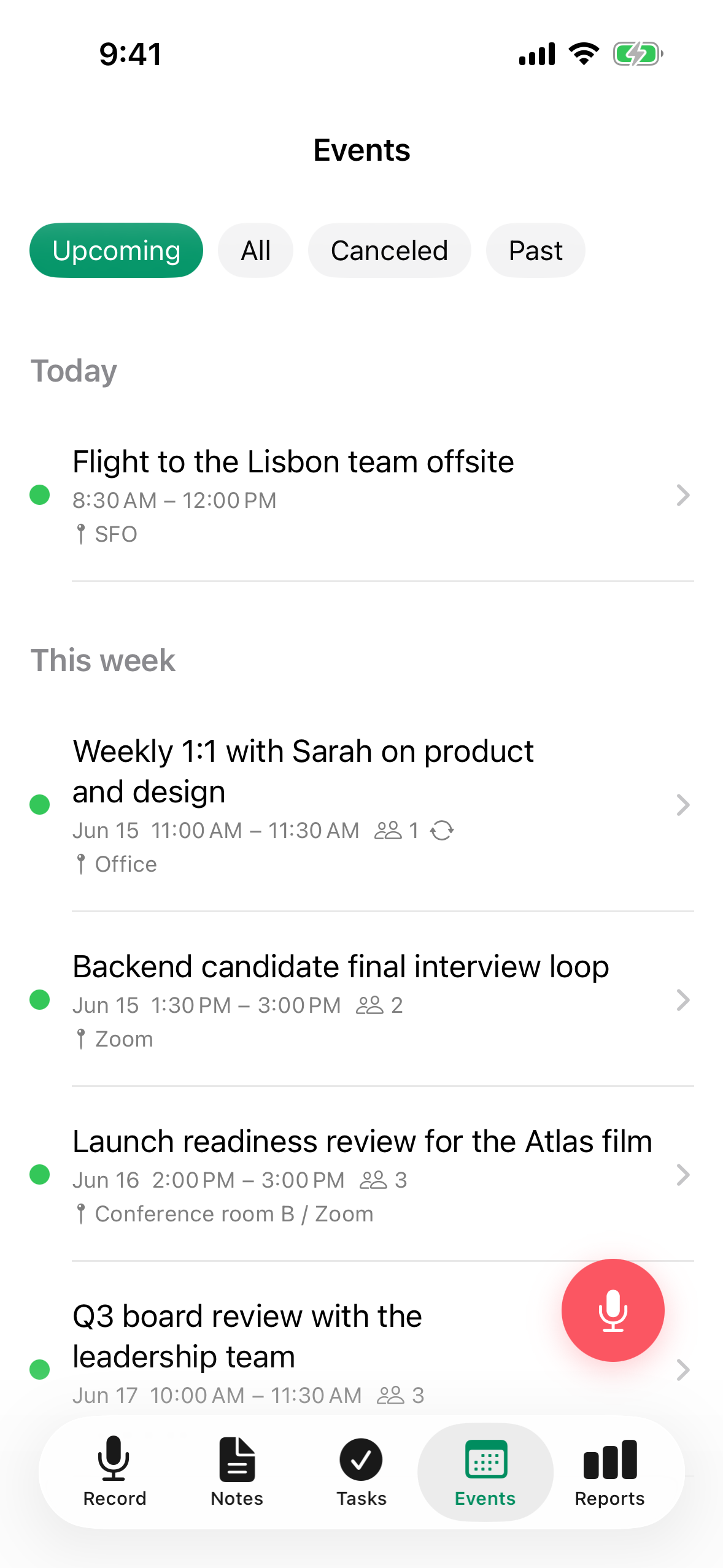
The Events tab groups your events by time:
- Today - events happening today
- Tomorrow - events for tomorrow
- This week - the rest of the week
- Later - future events beyond this week
- Past - events that already happened
You can also filter by status: Upcoming, All, Past, or Cancelled.
Event detail
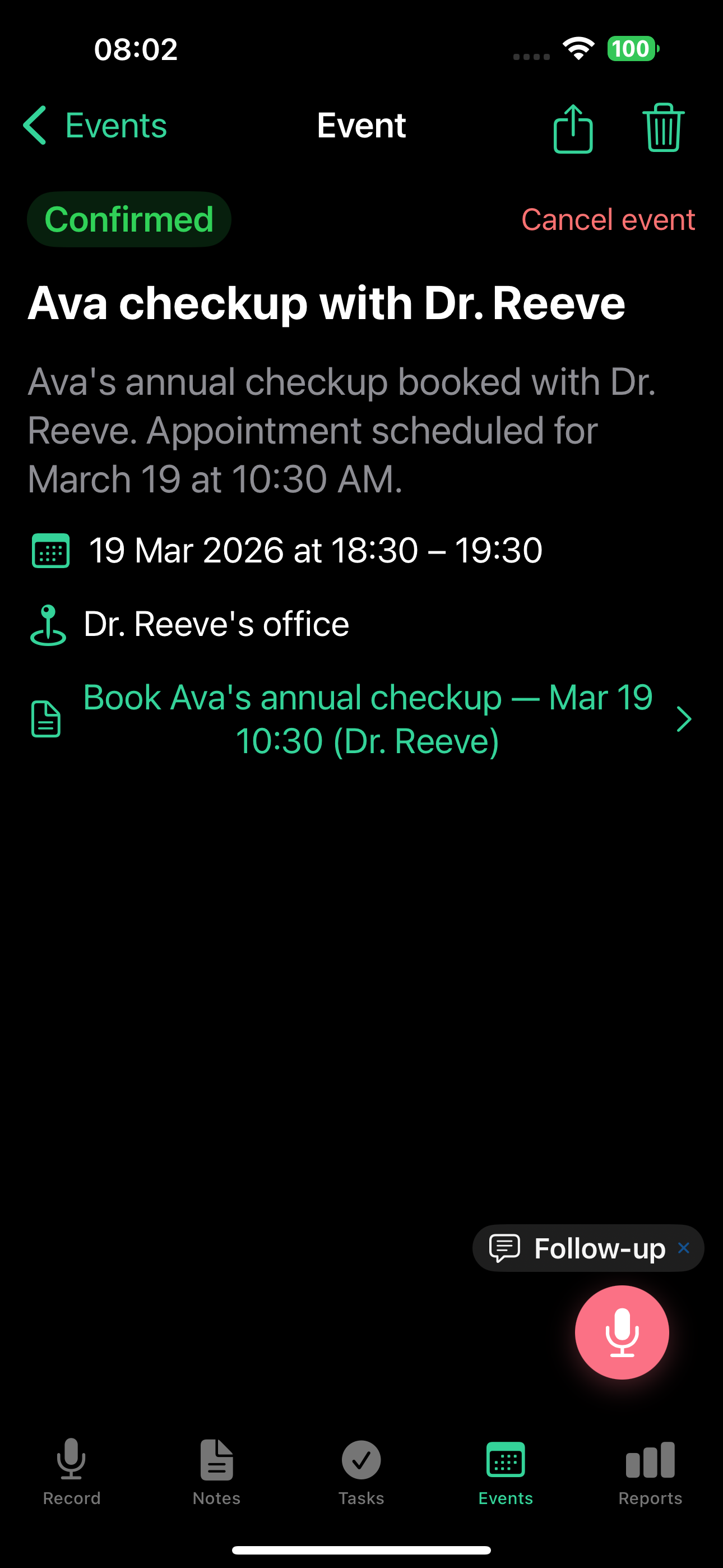
On the web app, the event detail shows attendees and reminders inline:
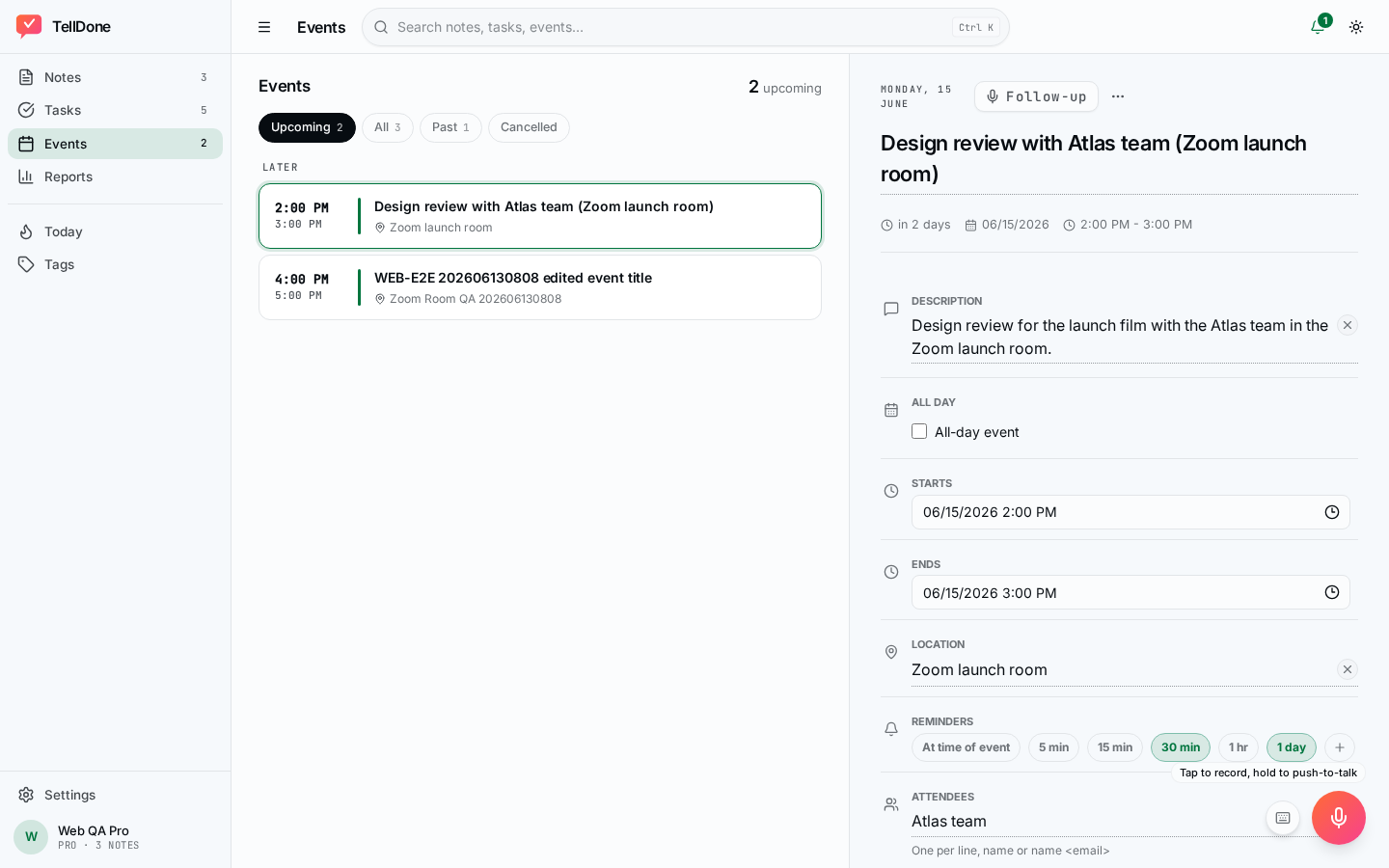
Tap an event to see and edit:
- Title and description
- Start and end date and time
- All-day flag
- Location - physical address, venue name, or virtual meeting link
- Recurrence - no repeat, daily, weekly, biweekly, monthly, yearly, or a custom pattern
- Reminders - one or more times before the event starts (in minutes)
- Attendees - people mentioned in the recording or added manually
- Tags
- Status - confirmed, tentative, or cancelled
- Link to source note - see the original recording
Location
If you mention a place in your voice note, TellDone extracts it as the event location. This works for physical addresses, venue names, and virtual meeting platforms like Zoom or Google Meet. You can also edit the location inline at any time.
All-day events
Say "all day" or "the whole day" and TellDone creates an all-day event without specific start and end times. Useful for holidays, deadlines, or day-long activities. You can toggle the all-day flag from the detail screen.
Recurrence
TellDone supports recurring events: daily, weekly, biweekly, monthly, and yearly. Say "every Monday" or "weekly team meeting" and TellDone creates a recurring event with the correct pattern. You can also change the pattern from the detail screen using the recurrence picker.
The detail screen no longer shows raw recurrence rule text. If a note created an unusual custom pattern, it is preserved as Custom until you pick a different option from the recurrence menu.
Start and end times
Start and end can be the exact same instant - useful for point-in-time markers. The only combination blocked by the editor is an end time that is earlier than the start.
Editing on the detail screen
Every field on the event detail screen is editable inline. There is no separate edit form and no pencil icons - the whole row is the tap target.
- Tap any field on the detail screen to edit it. Changes save automatically as soon as you tap outside the field or tap Done. If you change something by mistake, tap Undo on the snackbar that appears at the bottom to revert that edit.
- Date and time pickers use the system date picker (large detent, with an inline "Clear" button). Times display without seconds.
- Tags use autocomplete from your existing tags, plus a "+ check" button to commit a new one.
- Optional fields you have not set are collapsed. Use the Add field menu to reveal them - it only lists hidden fields.
- Required fields (title, start, end) stay visible.
How saving works:
- iOS: changes apply right away when you commit a field or dismiss the editor.
- Web: edits are batched. Use Save to apply them or Cancel to discard. Save is disabled until something changes.
Inline edits are great for quick changes. For bigger updates - cancelling, rescheduling, or moving locations - record a follow-up and the AI applies the change for you.
Update events by voice (follow-up)
Open any event and tap Follow-up to record an update. The AI understands the event context and can:
- Cancel the event - say "this meeting is cancelled"
- Reschedule - say "move this to 3pm" (duration is preserved)
- Change the location - say "we're meeting at the coffee shop instead"
See Follow-up recordings for details.
Event status management
Events have three statuses: Confirmed (green), Tentative (orange), and Cancelled (gray). You can change status inline from the detail view. To cancel an event, open the overflow menu on the detail screen and choose Cancel.
Cancelled events remain in your list under the "Cancelled" filter. Open the event and tap Restore to bring it back.
Calendar sync
Apple Calendar (iOS)
TellDone can sync events directly to your Apple Calendar:
- Go to Settings > Integrations
- Enable Apple Calendar
- Grant calendar permission when prompted
- New events from your recordings appear in your calendar automatically
This is a local integration - data stays on your device.
Event reminders
- Set notifications before events start, either by voice or inline on the detail screen
- Multiple reminder times are supported per event - for example, 15 minutes before and 1 hour before
- Push notifications appear on your iOS device
- When the Apple Calendar integration is on, reminders sync to the event in Apple Calendar as well. Without the integration they still fire as local pushes.
Mention reminder times in your recording: "remind me 15 minutes before and an hour before." TellDone will set both reminders automatically. You can also add or remove reminders later from the event detail screen.
Mention specific dates and times in your recordings for the most accurate event creation. "Meeting with Alex on Friday at 2 PM" works better than "meeting with Alex sometime next week."
See also
- Recording voice notes - how events are extracted from your voice
- Apple Calendar and Reminders - sync with Apple Calendar
- Daily reports - events in your daily report
- Weekly reports - events in your weekly overview