Recording voice notes
Recording is the heart of TellDone. Speak, and AI turns your words into structured notes, tasks, and events.
Two recording modes
- Toggle mode (default): Tap the microphone to start. Tap again to stop.
- Hold-to-record mode: Hold the microphone button, release to stop.
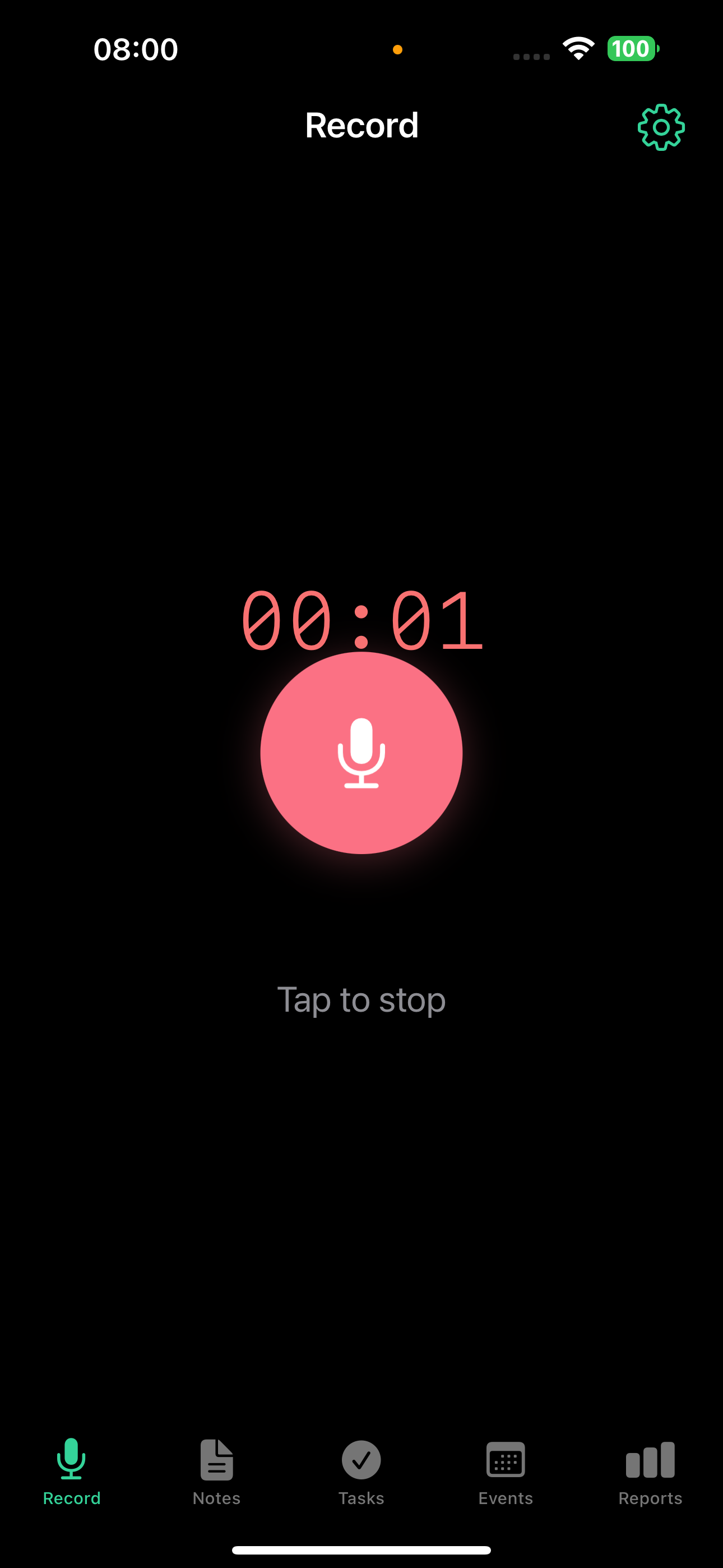
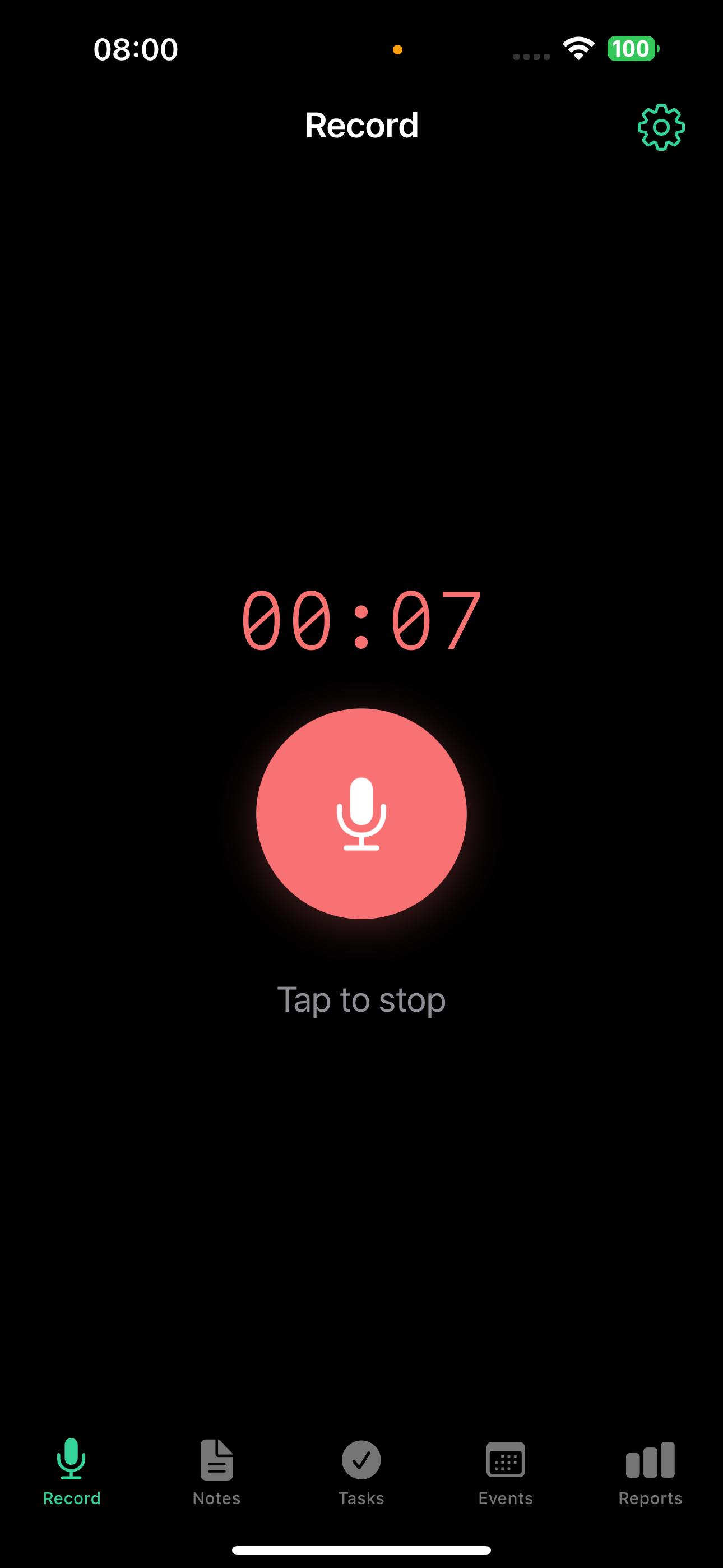
During recording
- A timer shows how long you've been recording
- Recording continues in the background - you can switch to another app
- On iPhone, the recording status appears in Dynamic Island (iPhone 14 Pro and later, hardware requirement) and on the Lock Screen. The Lock Screen banner with a Stop button requires iOS 18 or later.
- TellDone automatically rejects recordings shorter than 2 seconds, silence, and empty audio
TellDone optimizes audio for speech: recordings are compressed and silence is automatically trimmed. External microphones (AirPods, Bluetooth headsets) work well - the audio processing is tuned for wireless audio.
After recording
After you stop recording, a small processing badge appears on the note card and walks through the stages:
- Uploading - the audio is sent to the server
- Transcribing - your speech is converted to text
- Analyzing - AI extracts the title, tasks, events, and tags
- Saving - everything is written to your library
Long recordings (over 2 minutes) get a small sparkle (✨) on the badge so you know extra processing time is expected. If a stage stays active for more than 45 seconds, the badge label switches to "still working" so you know it has not stalled. A one-hour recording can take roughly 5 minutes end to end.
If the badge is still on the same stage after about 3 minutes, pull to refresh or reload the page. The app reconciles state with the server and clears the badge if processing already finished.
When processing completes, TellDone has created:
- A note with an AI-generated title and summary
- A note type - automatically classified
- Up to 5 tags assigned based on content
- Up to 5 tasks with priorities and deadlines
- Up to 3 events with dates, times, and attendees
- The original audio is saved and playable from the note
Text input
Prefer typing? Tap Text note on the Record screen.
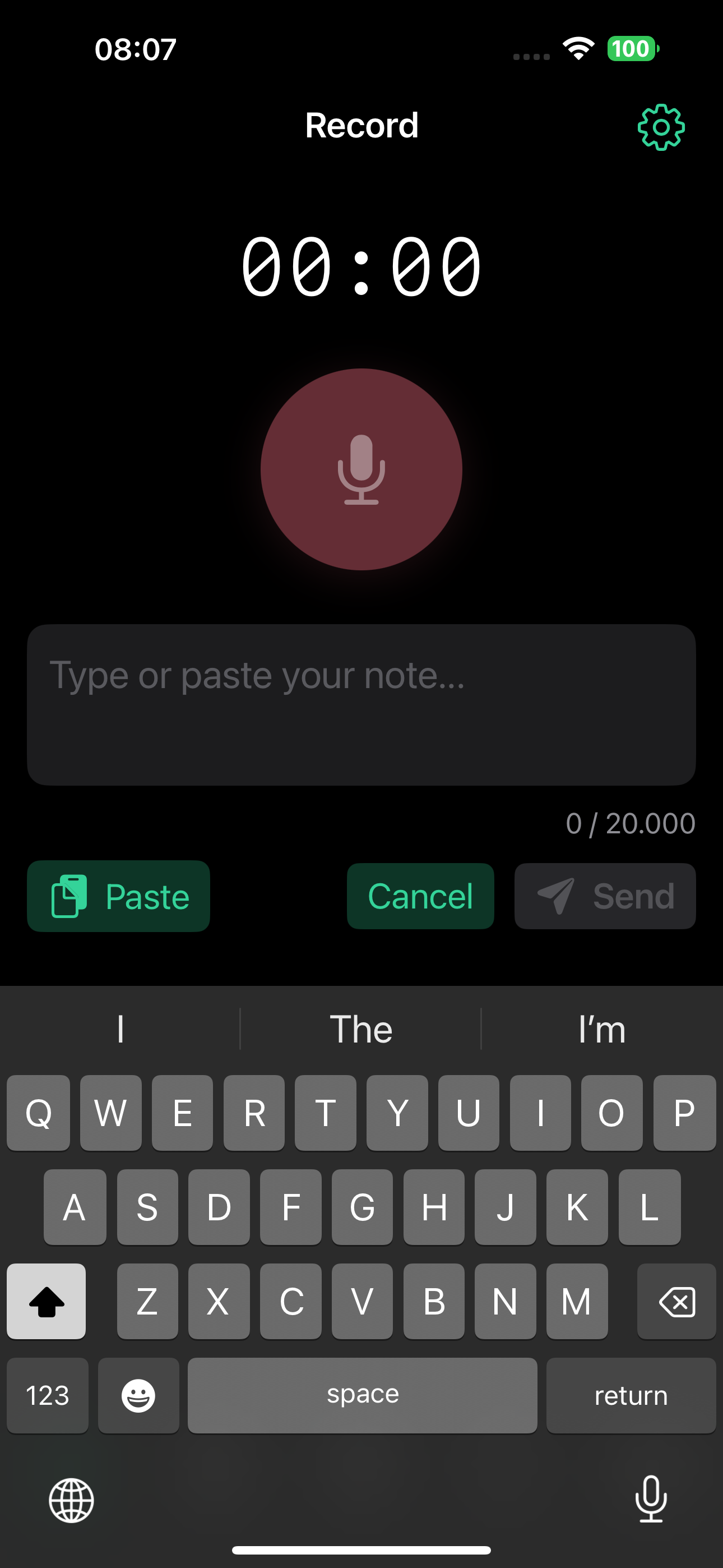
- The keyboard appears with Paste, Cancel, and Send buttons
- Text goes through the same AI analysis as voice
- Max text length varies by plan: Free 2,000 characters, Basic 8,000, Pro 20,000, Ultra 50,000
Sharing audio files into TellDone (iOS)
You can send existing audio recordings into TellDone from any app that supports the iOS share sheet (Voice Memos, Files, Mail, Messages, Telegram, and others).
- Open the audio file in any app
- Tap Share and choose TellDone
- A short confirmation screen shows the file name and size with Save and Cancel buttons
- The file is uploaded and runs through the same processing pipeline as a regular recording
Supported formats: m4a, mp3, wav, caf, aiff, and other public.audio types (iOS voice messages, Mail audio attachments, lossless Voice Memos).
Size limit: up to 100 MB (roughly 90 minutes of lossless audio). Larger files are politely declined with a "file too large" message.
Plan limits still apply. The 100 MB ceiling is technical. Your plan's recording-duration cap (Free 5 min, Basic 10, Pro 60, Ultra 90) and monthly notes quota also apply to imported audio, so a Free user sharing a 30-minute meeting will hit their plan's duration limit first.
The resulting note behaves exactly like one you recorded inside the app, including transcription, AI analysis, tasks, and events. The same Share Sheet entry also accepts plain text and URLs.
Recording in the web browser
You can also record at app.telldone.app using your browser's microphone. The web recorder is built for both desktop and mobile browsers.
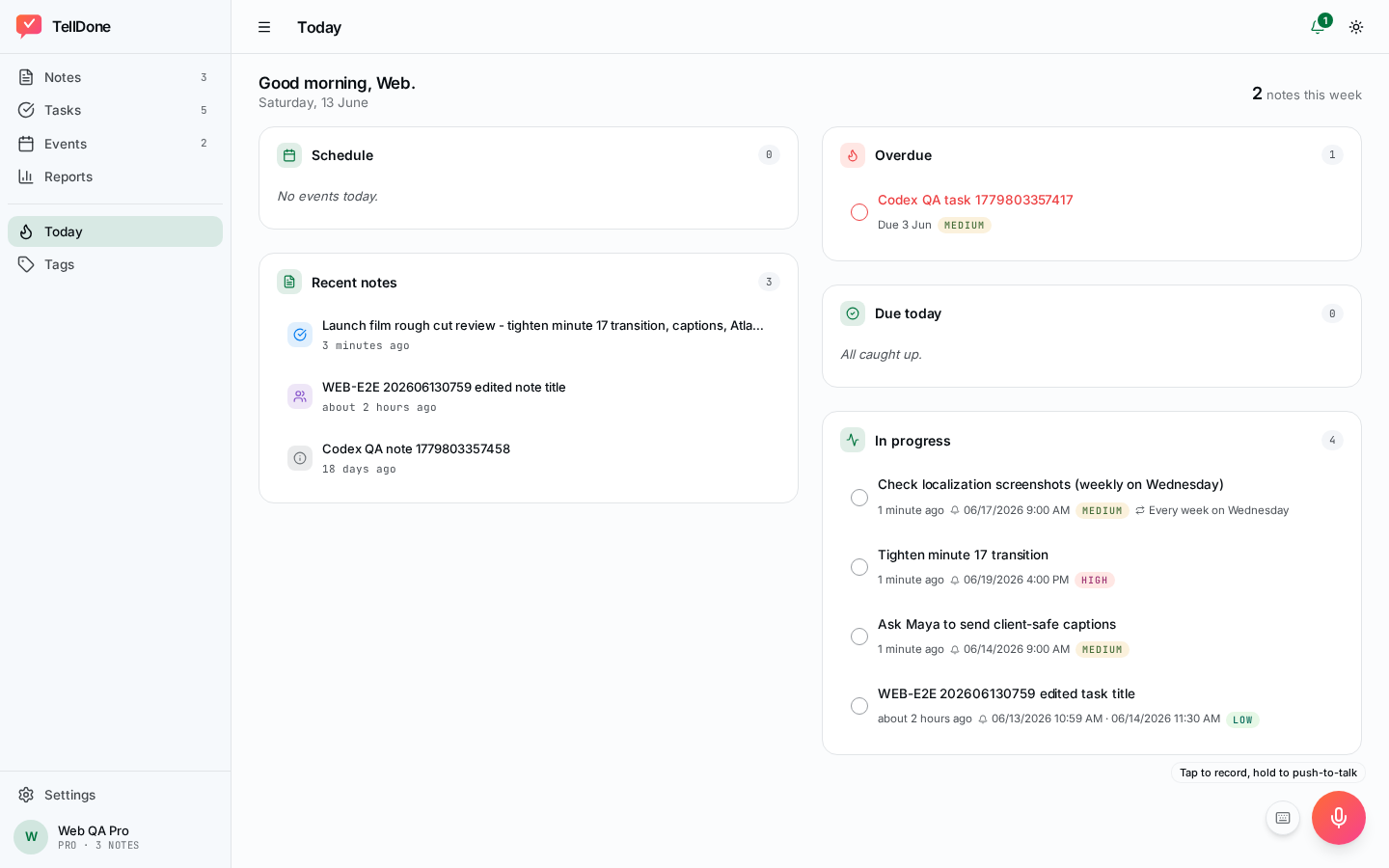
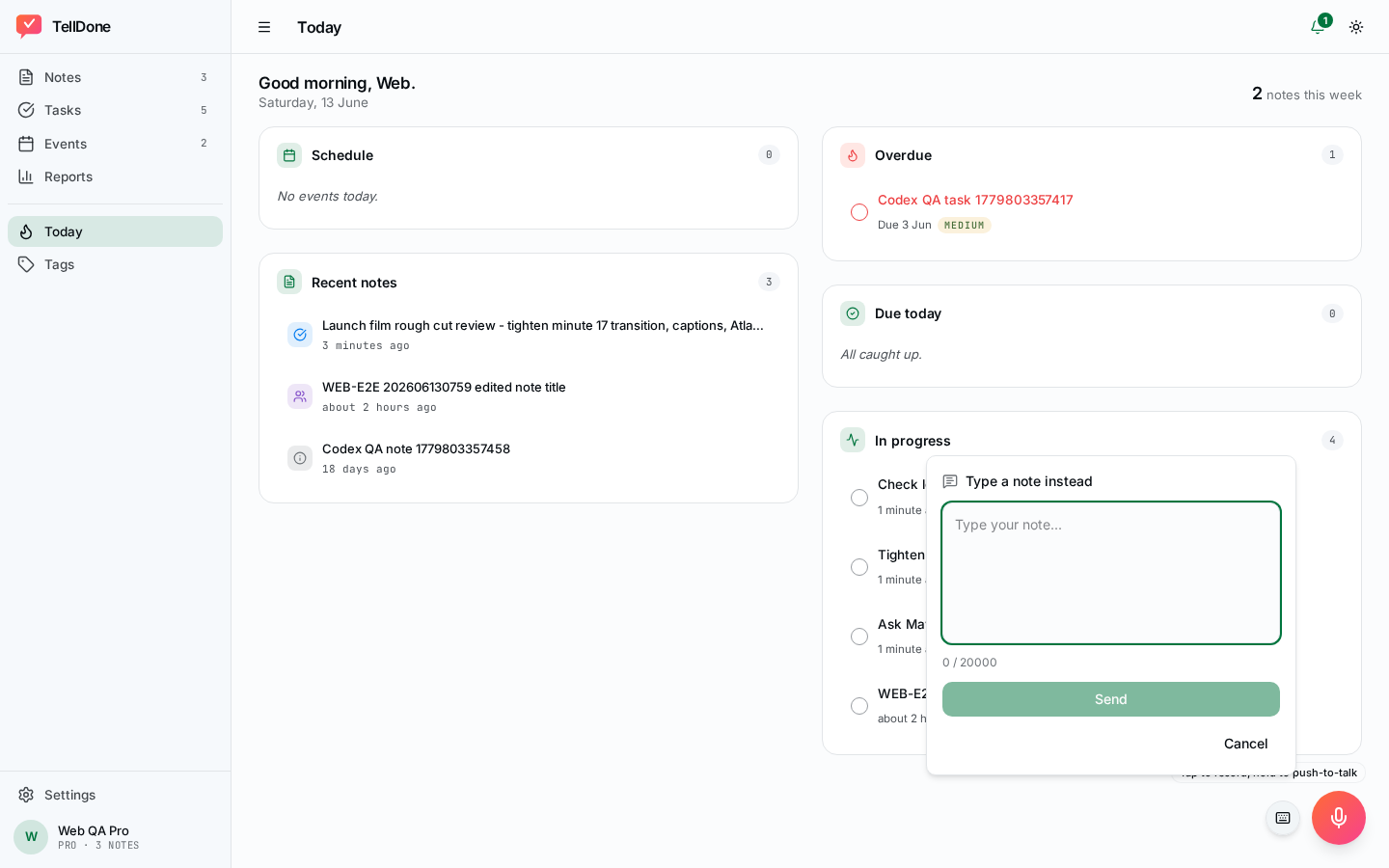
- Tap to record - tap the mic to start, tap again to stop
- Hold to talk - press and hold for push-to-talk style recording
- Drag to cancel - while holding, drag away from the button to discard the recording
- Keyboard shortcuts (when no text input is focused):
- R - start or stop recording
- Space - stop recording
- Esc - cancel the current recording
On iOS Safari you can choose Share > Add to Home Screen to install the web app. On Chrome or Edge desktop, use Install from the address bar. Once installed, the browser remembers your microphone permission across sessions - useful on iOS Safari, which otherwise asks for mic access every time.
For the full web walkthrough, see the Web app guide.
Apple Watch chained recording (Pro and Ultra)
On the Pro and Ultra plans, the TellDone Apple Watch app can record up to 60 minutes by chaining together 10-minute segments behind the scenes. You do not have to do anything special - long sessions are stitched into a single note on iPhone.
How a chained session works:
- You start recording on the Watch as usual
- Each underlying segment is up to 10 minutes long
- 20 seconds before a segment ends, the Watch gives a haptic tap and shows an overlay with "Continue" and "Finish"
- Tap "Continue" to start the next segment immediately, or "Finish" to wrap up
- If you do nothing, a 15-second grace window after the segment ends still lets you keep going
- When you stop, all segments are joined into one note on iPhone
On Free and Basic, the Watch records a single segment (Free 5 min, Basic 10 min) - no chaining. Pro and Ultra both cap chained Watch sessions at 60 minutes total, even though Ultra allows 90 minutes on iPhone and Web.
For full Apple Watch setup and usage, see Apple Watch.
Follow-up recordings
Follow-ups are one of TellDone's most useful features. Instead of just adding context, the AI understands the parent item and can take actions on it - complete a task, reschedule an event, or update a deadline, all from your voice.
How to record a follow-up
You can start a follow-up from any note, task, or event detail screen, both on iPhone and on the Web app.
- Open a note, task, or event
- Tap the Follow-up button
- Record or type your update
The follow-up button always carries the parent context, so the AI knows which item you are updating no matter where you started from.
What the AI knows
When you record a follow-up, TellDone loads the parent item's full context and passes it to the AI:
- Follow-up to a task - the AI sees the task title, description, priority, deadline, reminder, and tags
- Follow-up to a note - the AI sees the note title, summary, tags, all child tasks (with priorities, deadlines, reminders), and all child events (with times, locations, and reminders)
- Follow-up to an event - the AI sees the event title, description, location, start and end times, all-day flag, status, recurrence rule, reminders, attendees, and tags
This means the AI understands exactly what you're talking about and can make smart decisions.
What the AI can do
Follow-up recordings don't just add context - they can change the parent item based on what you say:
Follow-up to a task:
- "I finished this" - completes the task
- "Push this to next Friday" - updates the deadline
- "Actually this is high priority" - changes the priority
- "Remind me about this tomorrow at 9am" - sets a reminder
Follow-up to an event:
- "This meeting is cancelled" - cancels the event
- "Move this to 3pm" - reschedules (preserves duration)
- "We're meeting at the coffee shop instead" - updates the location
Follow-up to a note:
- "I finished tasks 1 and 3 from this note" - completes specific child tasks
- "All done with everything here" - completes all child tasks
- "Move the meeting to 11:30" - reschedules a child event (preserves duration)
- "The meeting is cancelled" - cancels a child event
- "Change the venue to the coffee shop" - updates a child event's location
- "Push the deadline to Friday" - updates a child task's deadline
- "This task is now high priority" - changes a child task's priority
- "Remind me about that task tomorrow" - sets a child task's reminder
New tasks and events mentioned in the follow-up are also extracted and linked to the same context.
Follow-ups work with both voice and text input. Say "Hey Siri, add a note in TellDone" and dictate a follow-up thought, or open a task and type a quick update.
iOS extras
Action Button (iPhone 15 Pro and later)
Assign TellDone to the Action Button for one-press recording from anywhere. Two paths work on iOS 18+:
Recommended (iOS 18 Controls):
- Go to your iPhone Settings > Action Button
- Swipe to Controls and pick TellDone Record
- Press the Action Button to start recording; press it again to stop
Alternative (Shortcuts):
- Go to Settings > Action Button
- Swipe to Shortcut and select the TellDone recording shortcut
- Press the Action Button to toggle recording
No need to open the app - the recording starts and stops in the background.
Control Center widget
Add TellDone to Control Center for quick access:
- Go to your iPhone Settings > Control Center
- Add TellDone
- Swipe down to open Control Center, then tap the TellDone widget to start or stop recording
More
- Siri Shortcuts - 6 voice commands for hands-free note creation
- Dynamic Island and lock screen controls during recording
Transcription
TellDone supports 60+ languages for speech recognition. Two transcription modes:
- Server transcription (recommended) - more accurate, processed in the cloud
- Apple Speech Recognition - transcription happens on-device. Audio is still uploaded to the server for playback and AI analysis
Choose the language you speak most often in Settings. Mixing languages in one recording reduces accuracy.
Common messages
If something goes wrong during recording, you may see one of these:
- "Recording appears to be silent" - no speech was detected. Try recording again in a quieter environment.
- "Recording exceeds maximum duration" - you hit your plan's recording time limit.
- "Speech-to-text minutes quota exceeded" - your monthly transcription minutes are used up. Check your usage in Settings, or upgrade your plan.
- "Monthly notes quota exceeded" - you've reached the notes limit for this month.
Recording limits
| Free | Basic | Pro | Ultra | |
|---|---|---|---|---|
| iPhone / Web max duration | 5 min | 10 min | 60 min | 90 min |
| Apple Watch (chained) | 5 min | 10 min | 60 min | 60 min |
| Notes/month | 50 | 300 | 1,000 | Unlimited |
| STT minutes/month | 60 | 300 | 600 | 1,500 |
The Apple Watch is capped at 60 minutes per session even on Ultra. iPhone and Web can use the full per-plan duration.
See also
- Notes - how your recordings become structured notes
- Tasks - tasks extracted from your voice
- Events - calendar events created from recordings
- Smart Context - auto-complete tasks by mentioning them
- Web app guide - record and review notes in your browser