TellDone on Apple Watch
The TellDone Apple Watch app lets you record voice notes directly from your wrist. Recordings are uploaded to the server and processed by AI - the same pipeline as iPhone recordings.
The Watch app is recording only. It does not display notes, tasks, events, or reports. Its purpose is fast, frictionless voice capture.
Apple Watch Series 6 or later with watchOS 11.0+. Control Center widget requires watchOS 26+. Double Tap requires Series 9+ or Ultra 2+.
Getting started
- Install TellDone on your Apple Watch from the App Store
- Make sure you are logged in on your iPhone - your account syncs automatically to the Watch
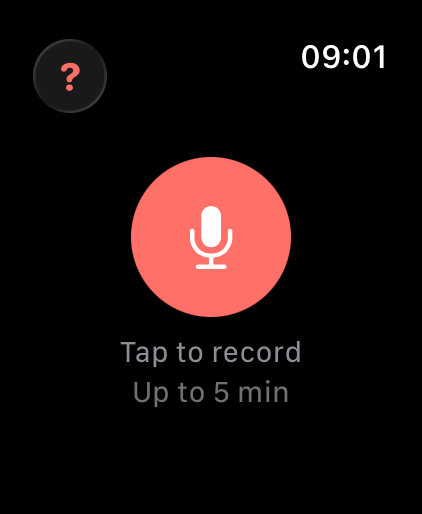
- Open TellDone on the Watch and tap the microphone button to record
The first time you open the Watch app, it shows "Open TellDone on iPhone" until your account syncs. Once synced, the Watch works independently.
Your first voice recording activates a Pro trial automatically - no credit card needed. This applies whether you record from the Watch or your iPhone, so recording from the wrist counts.
Ways to record
You have 5 ways to start a recording:
| Method | How | Requirements |
|---|---|---|
| In-app button | Open TellDone, tap the mic button | Any Apple Watch |
| Watch Face complication | Tap the TellDone icon on your watch face | Any Apple Watch |
| Double Tap | Pinch index finger and thumb twice | Series 9+ / Ultra 2+ |
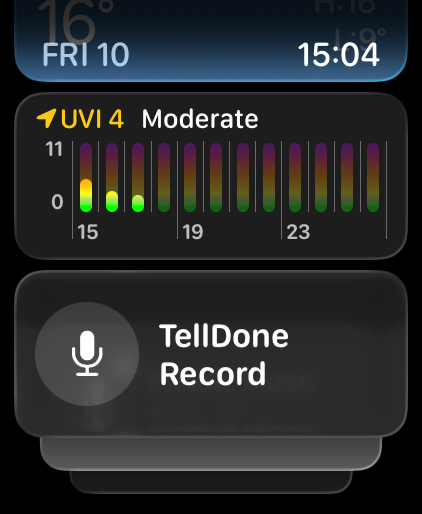
| Control Center | Press side button, tap TellDone Record | watchOS 26+ |
| Action Button | Press the Action Button | Ultra / Ultra 2 / Ultra 3 |
All methods toggle recording - first tap starts, second stops.
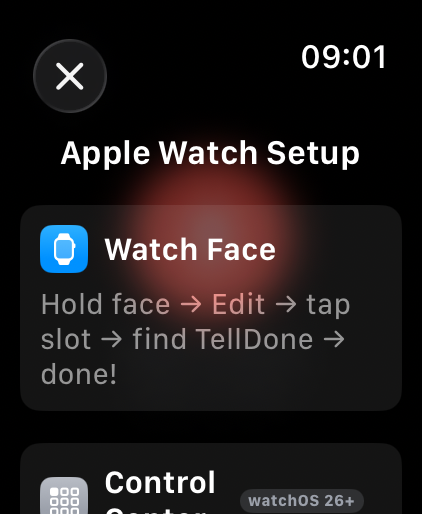
Tap the (?) button in the top-left corner of the Watch app to see setup instructions for each recording method.
Adding the complication
To add TellDone to your watch face:
- Long-press your watch face
- Tap Edit
- Swipe to the complications section
- Tap a slot and select TellDone
- Now just tap the complication to open TellDone and start recording
During recording
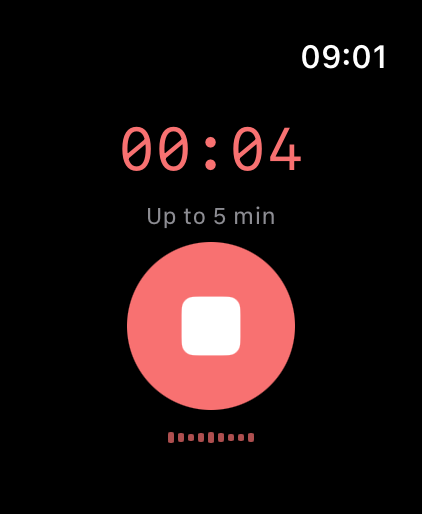
- A red timer shows the recording duration
- A small audio waveform shows your voice level
- When you reach 80% of your plan's recording limit, an orange warning shows the remaining time
- Recording continues while you lower your wrist, but watchOS stops each session after about 10 minutes - for Pro and Ultra plans, TellDone prompts you to continue (see the note below on long recordings)
- Tap the button again (or Double Tap) to stop
After recording
Recordings are uploaded automatically:
- Direct upload - the Watch uploads directly to the server via Wi-Fi or cellular
- iPhone relay - if the Watch can't reach the server, it transfers the file to your iPhone via Bluetooth, and the iPhone uploads it
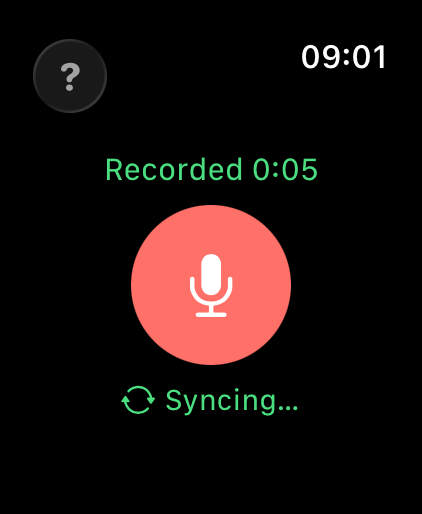
You'll feel a haptic tap when the upload succeeds. If upload fails, it retries automatically every 60 seconds. The number of pending recordings is shown at the bottom of the screen.
Recording limits
The Watch follows the same recording duration limits as your plan:
| Plan | Max recording |
|---|---|
| Free | 5 minutes |
| Basic | 10 minutes |
| Pro | 60 minutes |
| Ultra | 60 minutes |
Free and Basic plans cannot chain recordings - a Watch session ends at the plan's per-recording limit (Free 5 min, Basic 10 min). The chained 60-minute total is available on Pro and Ultra only.
Limits sync from your iPhone. The Watch auto-stops when the limit is reached.
watchOS limits each recording session to about 10 minutes in the background. For Free and Basic plans, this has no effect since their recording limits are 5 and 10 minutes.
For Pro and Ultra plans, TellDone uses chained recording to go beyond 10 minutes. Every 10 minutes, the Watch vibrates and shows a "Continue / Finish" prompt - tap Continue to extend the recording for another 10 minutes, up to a maximum of 60 minutes total (6 sessions). After 60 minutes, use your iPhone for the rest.
If you miss the Continue prompt, a 15-second grace window appears - tap Continue recording to keep going, or Finish to save what you have.
Troubleshooting
| Problem | Solution |
|---|---|
| "Open TellDone on iPhone" | Open TellDone on your iPhone and make sure you're logged in. Your account syncs automatically. |
| "Microphone access denied" | Go to Settings on your Watch > TellDone > Microphone and turn it on |
| "Too short" or "No audio detected" | Record for at least 2 seconds and speak clearly |
| Recordings stuck as "pending" | Make sure your Watch has internet access (Wi-Fi or cellular) or is near your iPhone |
| Recording stops unexpectedly | watchOS limits each session to about 10 minutes. On Pro and Ultra, tap Continue at the prompt to chain sessions up to 60 minutes. For anything longer, use your iPhone. |
See also
- Recording voice notes - recording tips, modes, and limits
- Siri and Shortcuts - more hands-free recording options
- Download and install - getting TellDone on all your devices