Your first voice note
Record a voice note and watch TellDone organize it for you.
The welcome carousel (first launch)
The first time you open TellDone, you go through a 7-step welcome carousel that gets you set up in under a minute. You can swipe forward or use the button at the bottom of each slide.
- Welcome - a short animation that shows how a voice note becomes structured tasks. Tap Next.
- Pick your voice language - scroll through 60+ supported languages. The list opens at your detected language so the right option is usually one tap away. This is the language you will speak in your recordings, and it drives the language of your note titles, summaries, tasks, events, and reports. Tap Continue.
- Microphone access - TellDone needs the mic to record. Tap Grant Mic Access and allow the system prompt. If you skipped earlier, tap Open Settings to enable it manually.
- Notifications - allow notifications so you get report-ready alerts and task reminders. Tap Allow or Continue if you want to decide later.
- Quick access (iOS) - a quick intro to the Control Center widget and Action Button so you can record without opening the app. Tap Got it.
- Connect your calendar and reminders (optional) - one-tap connect for Apple Calendar and Apple Reminders so events and tasks flow out of TellDone right away. Tap Next.
- First action - a pulsing red mic button invites you to record your first note. Tap it and start talking.
Picked the wrong voice language by accident? You can change it any time in Settings - the Transcription language picker is directly on the main Settings screen. Your interface language and your voice language are separate, so changing one does not affect the other.
Record your first note
- Tap the big microphone button at the bottom of the screen
- Speak naturally - for example: "Tomorrow I need to call Maria about the contract at 3 PM, and I should finish the presentation by Friday"
- Tap the button again to stop recording
- Wait about 10 to 30 seconds while TellDone processes your recording
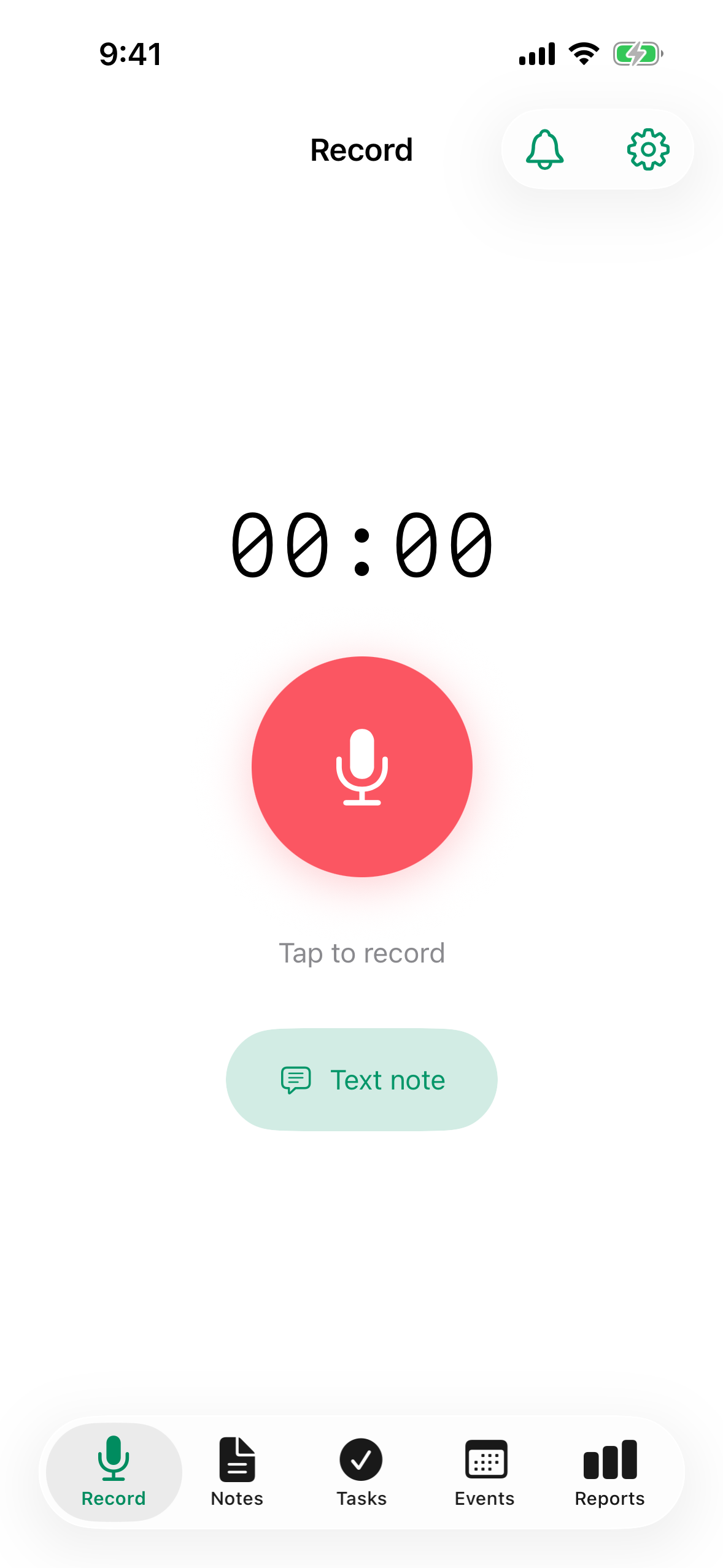
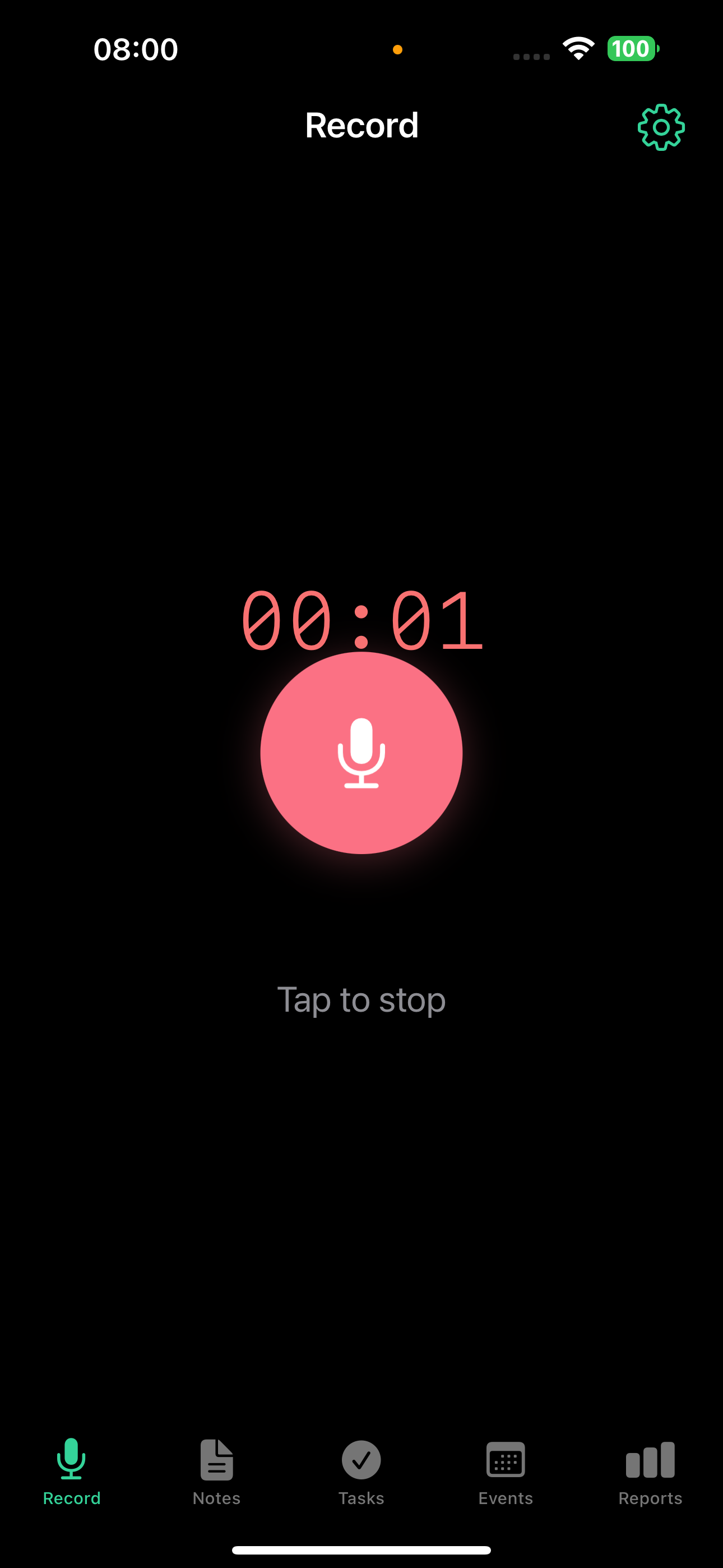
Two recording modes are available: Toggle (default) - tap to start, tap to stop; and Hold-to-record - hold the button, release to stop. Recording continues in the background - you can switch to another app. The recording status shows in Dynamic Island and on the lock screen.
See what TellDone created
After processing, you'll find:
- A note with an AI-generated title and summary
- A note type (Task, Idea, Info, Status, Meeting, Event, or Reflection) - automatically detected
- Tags (up to 5) assigned based on the content
- Tasks extracted automatically (up to 5 per note) - in our example, "Call Maria about the contract" and "Finish the presentation" with a Friday deadline
- Events extracted automatically (up to 3 per note) - "Call with Maria" at 3 PM tomorrow
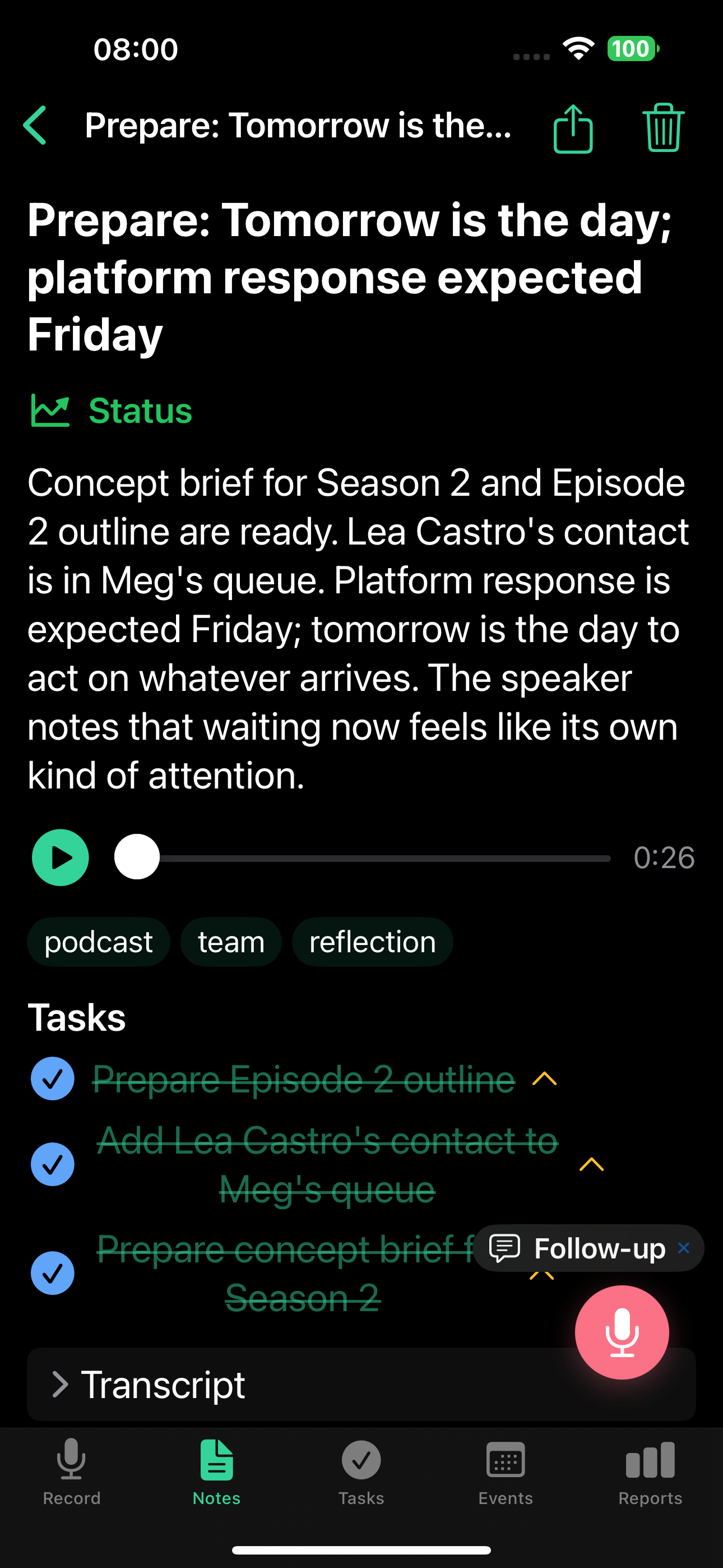
Tap the note to see the full detail view: summary, audio player, extracted tasks, full transcript, and a follow-up button to continue the conversation.
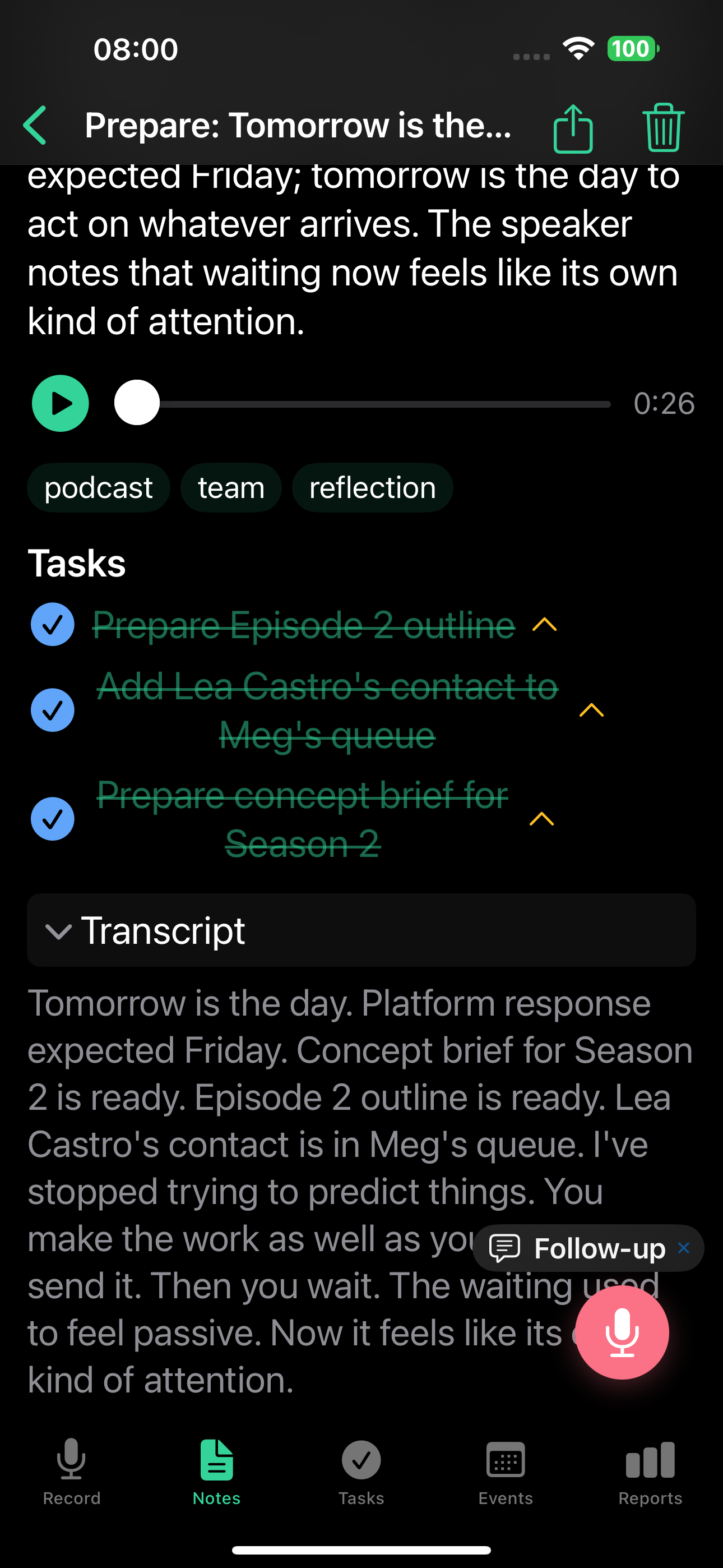
Learn more about the 7 note types and what you can do with your notes in the Notes guide. For details on extracted tasks and events, see Tasks and Events.
Prefer typing?
Tap Text note on the Record screen to type instead of speaking. Text notes go through the same AI analysis and produce the same structured output.
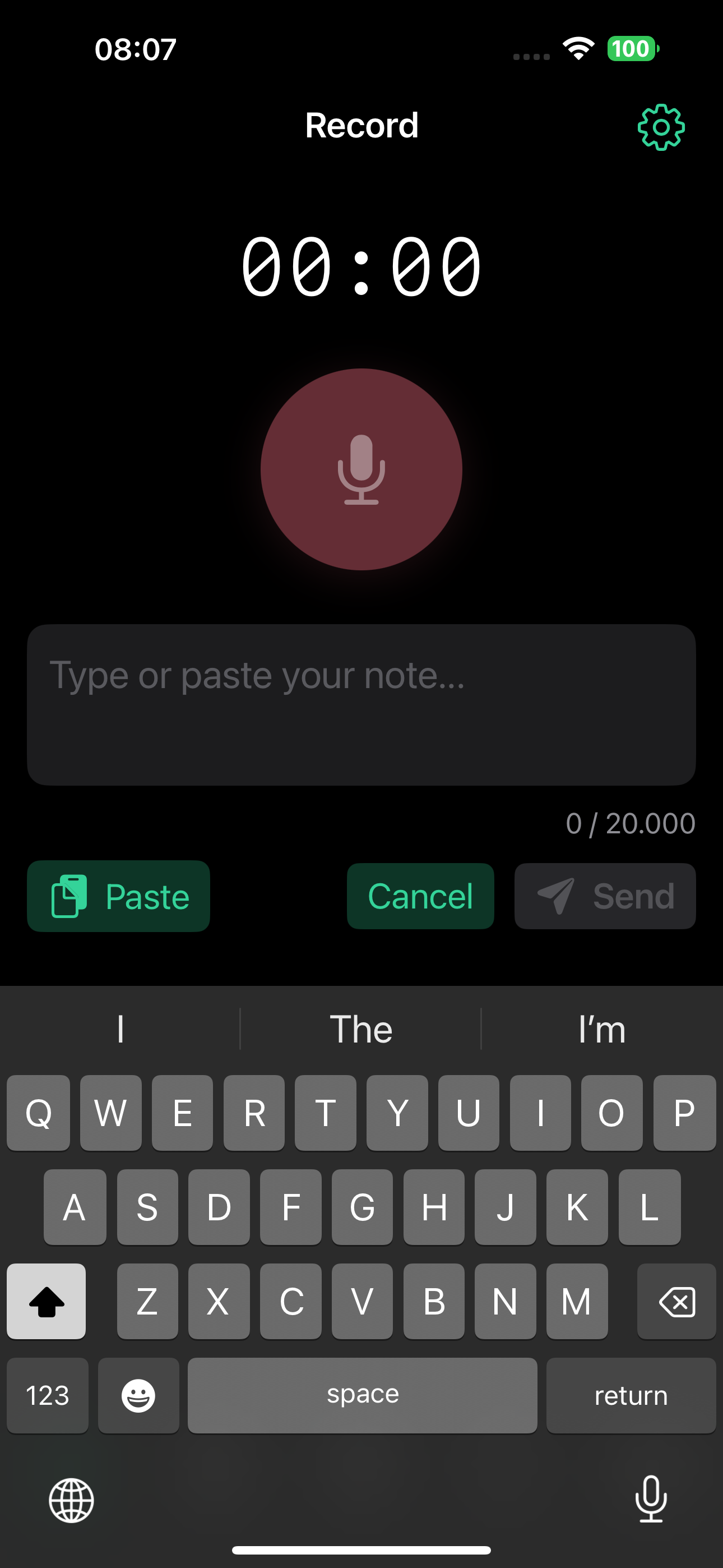
Maximum text note length depends on your plan: Free 2,000 characters, Basic 8,000, Pro 20,000, Ultra 50,000.
Other ways to record on iOS
- Control Center widget - add TellDone to Control Center for instant start/stop without opening the app
- Action Button (iPhone 15 Pro and later) - start recording with the physical side button
- Dynamic Island and Lock Screen - see the recording timer and stop button without unlocking
- Siri Shortcuts - use voice commands like "Hey Siri, create a TellDone note"
- iOS Share Sheet - share an audio file from Voice Memos, Files, or Messages directly into TellDone (up to 100 MB)
Recording tips
For the best results:
- Speak in one language per recording - mixing languages reduces accuracy
- Mention specific dates and times so TellDone can create accurate events
- Use clear task language like "I need to", "I should", "don't forget to"
- Recordings shorter than 2 seconds are automatically filtered out, so speak for at least a few seconds
Recording limits
| Free | Basic | Pro | Ultra | |
|---|---|---|---|---|
| Max duration | 5 min | 10 min | 60 min | 90 min |
| Notes/month | 50 | 300 | 1,000 | Unlimited |
Need more recording time or notes? See Plans and Pricing for a full comparison.
What's next?
Now that you've made your first recording, learn how to navigate the interface. Or dive deeper into recording features.