TellDone on the web
The web app at app.telldone.app is a full daily-use client. Same account, same data, same voice-first pipeline as the iPhone app. It works in any modern browser (Chrome 90+, Safari 14.3+, Firefox 90+, Edge 90+) and can be installed as an app on iOS and desktop.
You can record by voice or text, review notes/tasks/events with audio and transcripts, edit detail fields, browse daily/weekly/monthly/yearly reports, manage integrations and AI agent (MCP) access, and keep working through network drops thanks to a queued upload retry mechanism.
First run, in 60 seconds
- Open app.telldone.app.
- Sign in with email + password, "Sign in with Apple", or "Sign in with Google".
- After first sign-in, a short Welcome carousel plays. Tap "Start recording" at the end.
- Your first tap on the large mic button shows a brief "Allow microphone access" hint. Tap "Allow mic".
- The browser asks for microphone permission, choose "Allow" (not "Allow once").
- Say something simple: "tomorrow at 3pm doctor's appointment, and remember to call mom". Tap the mic button again to stop.
- Within 10 to 30 seconds, your note appears with an extracted task, event, and a short summary.
Install as an app (recommended)
When installed as a Progressive Web App, TellDone lives on your home screen without the browser URL bar and keeps microphone permission between sessions. On iOS this is the only way Safari will remember the mic permission, otherwise it re-asks every time.
iOS (Safari)
- Open
app.telldone.appin Safari (Chrome on iOS does not support PWAs). - Tap the Share icon at the bottom.
- Scroll down and tap "Add to Home Screen", then "Add".
- Launch from the home-screen icon, it opens in full-screen mode.
Desktop (Chrome or Edge)
- Open
app.telldone.app. - Look for the "Install" icon (a small box with an arrow) on the right side of the address bar.
- Click it and confirm "Install". The app opens in its own window without tabs.
Recording in the web
Single tap
Tap the red mic button, speak, tap again to stop and save. The default mode on any device.
Push-to-talk (press and hold)
Press and hold the mic button, speak while holding, release to save. Good for short thoughts.
Drag to cancel
Press the mic button and, while holding, drag your finger far to the side, the recording is discarded without upload. Useful when you started by accident.
Keyboard shortcuts (desktop)
- R: start or stop recording (when no input is focused)
- Space: stop while recording
- Esc: cancel the current recording
Type instead of speaking
Tap the "Type instead" button next to the mic. You get a text box with Paste, Cancel, and Send. The text goes through the same AI analysis as a voice recording, just without the speech-to-text stage.
Live capture indicators
While the recorder is active you see:
- A live recording timer.
- A microphone level meter that reacts to your voice.
- A remaining-time badge tied to your plan's per-recording limit.
- A follow-up context badge if the recording is tied to a parent note, task, or event.
What happens after you send
A small chip above the mic shows the pipeline stage:
| Chip | What is happening |
|---|---|
| Uploading | Audio is sent to the server |
| Transcribing | Speech becomes text. Roughly 5-30 seconds per 10 minutes of audio |
| Analyzing | AI extracts title, summary, tasks, and events |
| Saving | Saving to the database, matching against existing tasks (Smart Context) |
When the chip disappears and a toast pops up with the note title, processing is done. Long recordings (over 2 minutes) get a small ✨ next to the chip, they take a bit longer. If a stage stays more than 45 seconds, the chip adds "still working", normal under peak load. A one-hour recording can take up to about 5 minutes end to end.
If you reload the page mid-processing, or your connection drops, the app reconciles state on its own. It re-checks audio status for any in-flight upload and clears the chip within about 2 minutes once the server confirms the result. Pending audio IDs are kept in browser local storage with a short lifetime so a reload does not strand your uploads.
Offline behavior
The recorder is designed to keep working through flaky networks.
- An "Offline" banner appears when your browser loses connectivity.
- Recordings that fail to upload go into a queue stored in your browser's local storage.
- When connectivity returns, the queue retries automatically.
- If multiple retries fail in a row, you see a queue-exhausted state with the option to retry manually.
If you are about to record on the metro or a flight, the app still captures and queues your audio. It uploads when you are back online.
Importing an existing audio file
You can also send an already-recorded audio file straight into TellDone from the web app.
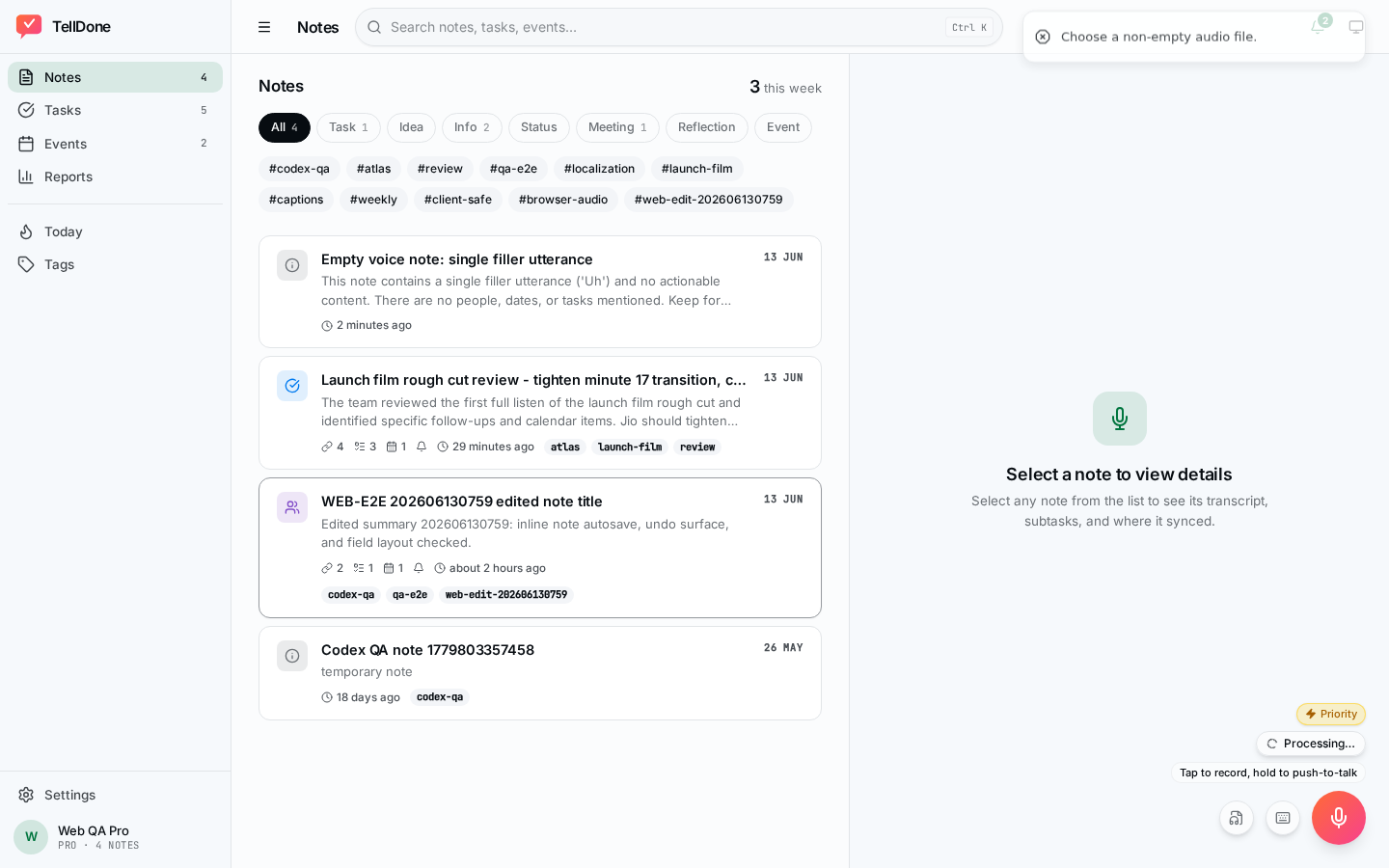
- Click the floating record button (FAB) and choose Pick an audio file (or use the file picker on the recorder screen).
- Select your file. A short confirmation appears with the file name and size.
- The file uploads and runs through the same pipeline as a recording.
Supported formats: m4a, mp3, wav, caf, aiff, ogg, and other common audio types. The browser checks the file before upload and rejects zero-byte or unsupported files with a friendly message.
Size limit: up to 100 MB (about 90 minutes of lossless audio).
Plan limits still apply. Your plan's recording-duration cap (Free 5 min, Basic 10, Pro 60, Ultra 90) applies to imported audio as well, so a Free user importing a 30-minute meeting will hit the duration limit first.
This works even on browsers where MediaRecorder is not available, so the file-import path is your fallback if your browser cannot record directly.
Follow-up recordings
Link a new recording to an existing note, task, or event so the AI has full context and can update it directly.
- Open any note, task, or event from the list, the detail panel opens on the right (or full-screen on mobile).
- In the detail header, tap "Follow-up". Available on Note Detail, Task Detail, and Event Detail.
- A chip appears at the top of the recorder: "In response to: <title>". Record or type as usual.
- The new note is saved with a link to the parent and appears in the parent's detail view.
To clear the parent link before recording, tap the ✕ on the chip. The link also clears automatically when you navigate away or once the upload finishes.
The follow-up uses the same parent context the iOS app uses: title, summary, child tasks and events, deadlines, and attendees. So if you record "move it to Friday and add Maria", the AI can update an existing event without you naming it.
See Recording voice notes for the full list of actions the AI can take on each parent type.
The redesigned workspace
In May 2026 the web app moved to a workspace layout. The same data, organized for daily use.
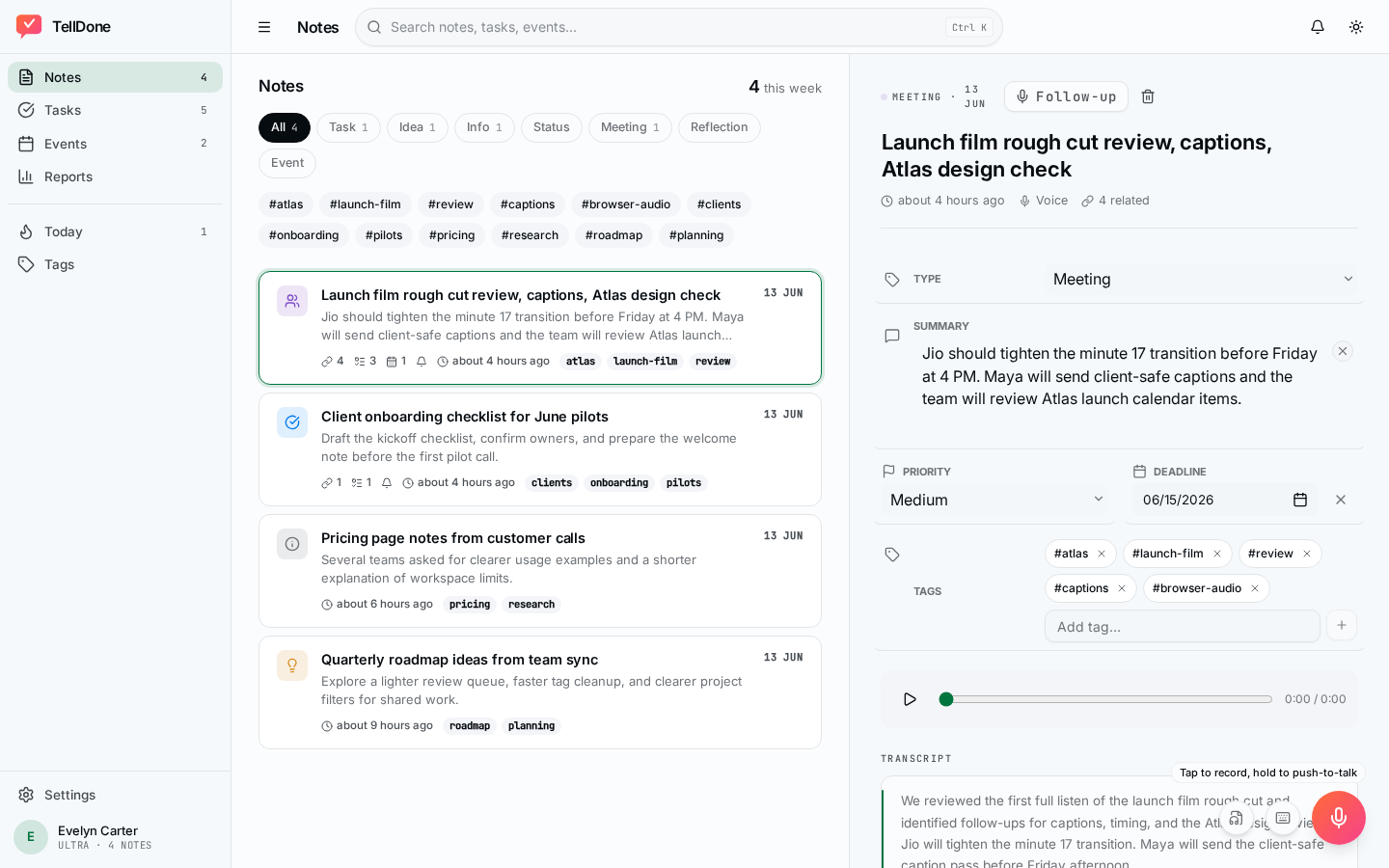
Desktop layout
- A left sidebar with primary sections: Notes, Tasks, Events, Reports, Tags, Activity, Settings. Each item shows the exact active count next to its name.
- A top bar with global search.
- A split list/detail layout. Click any row in the list and the detail panel opens on the right without leaving the page.
- The divider between list and detail is draggable, so you can resize the detail pane to suit your screen.
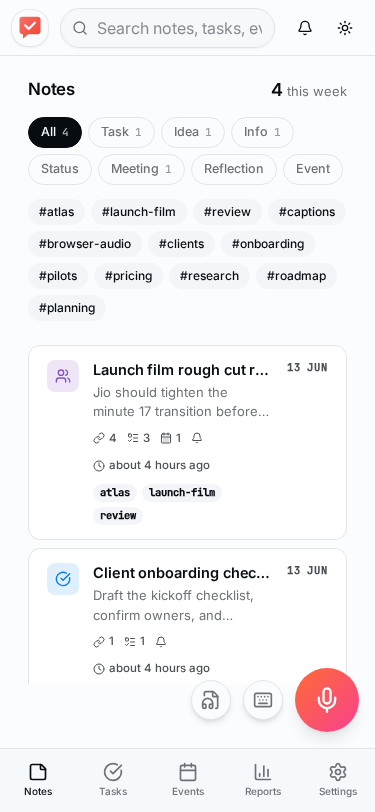
Mobile layout
- One pane at a time with a bottom tab bar.
- Tapping a row opens the full-screen detail view; back navigation returns to the list.
- The recorder button stays on top so you can record from any screen.
Theme and accent
In Settings > "Appearance" you choose:
- Light, dark, or system theme.
- An accent colour. Ultra-exclusive themes are available on the Ultra plan.
Unified detail editing
Notes, tasks, and events all share the same editing pattern.
- Open the detail view for a note, task, or event.
- Click any field (title, description, deadline, tags, etc.). The whole object enters edit mode.
- Change as many fields as you want.
- Press "Save" once. Only the fields you changed are sent to the server.
Behaviour shared across all three types:
- "Save" is disabled when nothing changed.
- "Cancel" restores the previous values.
- Tags use the same add/remove editor everywhere.
- Optional empty fields are still clickable so you can add missing details (a deadline on a task that did not have one, a location on an event, etc.).
Notes editing
Editable fields: title, summary, type, priority, deadline, tags. The audio player and transcript stay visible; they are review-only.
Tasks editing
Editable fields: title, description, status, priority, deadline, reminder, tags. You can also toggle subtasks/checklist items in place when present, and the complete/reopen toggle works from both the list and the detail view with an instant UI update.
Events editing
Editable fields: title, description, status, location, start time, end time, all-day flag, recurrence, reminders, attendees, tags.
The recurrence picker offers "No repeat", "Daily", "Weekly", "Monthly", "Yearly". If a pre-existing event has a complex custom rule, it shows as "Custom" until you change it (changing it replaces the rule).
Start can equal end on an event, only end-before-start is blocked.
Reports v2 on web
Reports show your work as structured dashboards, not just generated text.
- Tabs for Daily, Weekly, Monthly, and Yearly reports.
- A period navigator with previous/next buttons and a smart period picker so you can jump to any week, month, or year.
- Metric tiles for work volume and completion progress.
- Narrative sections with AI-generated summaries.
- Collapsible sections for the linked notes, tasks, and events that the report references. Click any reference to open it in detail view.
- A copy button puts the report on your clipboard as Markdown.
- Reports auto-refresh as soon as a new one is generated, so you do not need to reload.
Plan availability:
- Free: no reports.
- Basic: daily reports.
- Pro and Ultra: daily, weekly, monthly, yearly.
See Daily reports for what the daily report contains.
Settings overview
Settings are organized into sections.
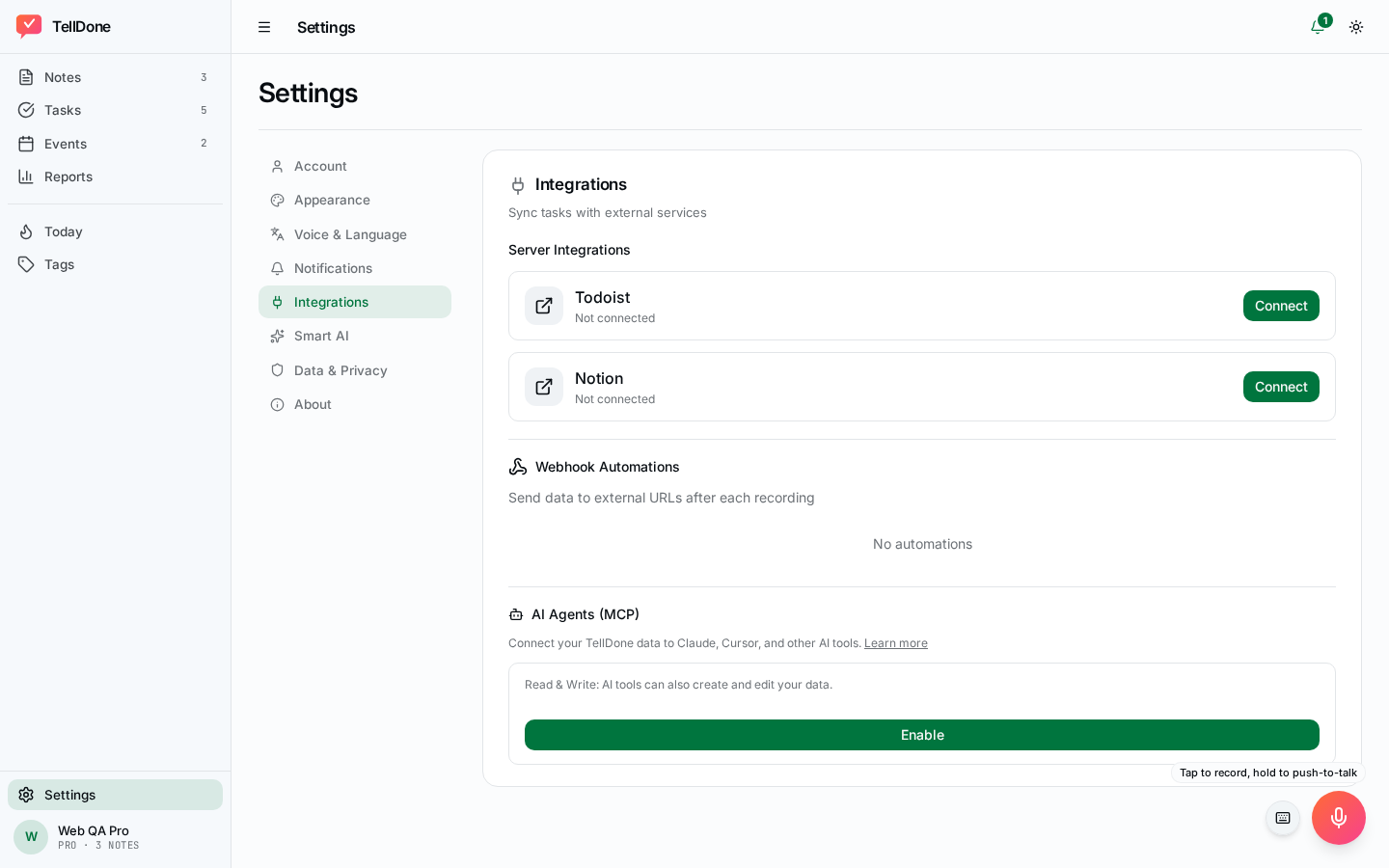
| Section | What's there |
|---|---|
| Account | Email, usage, change password, "Sign in with Apple" / "Sign in with Google" status, "Promo code" redemption (visible for all plan states, not only free users) |
| Email reports | Daily, weekly, monthly, yearly toggles; note-forwarding email with verification code |
| Appearance | Light / dark / system theme, accent colour, density. Ultra-exclusive themes on the Ultra plan |
| Voice & Language | UI locale (20 supported: en, es, ru, de, fr, it, pt, nl, pl, sk, el, tr, ja, ko, zh, hr, sr, bs, sl, ro), voice/content locale (60+ codes), timezone |
| Smart AI | Smart Context, smart achievements |
| Notifications | Browser permission status, forwarding-email verification |
| Integrations | Connect/disconnect Todoist and Notion. Webhook list with toggle and delete |
| AI Agents | Enable/disable MCP, switch between Read-only and Read + Write mode (both available on Pro and Ultra), reveal/copy/regenerate your access token, setup snippets for Claude Code, Cursor, Windsurf, Codex, OpenClaw, and cURL. See MCP Access |
| Data and privacy | Data export, delete account, replay onboarding |
| About | Version, Help / Privacy / Terms links, Contact Support dialog: record a voice message up to 5 minutes (browser mic), type a text message, attach an audio file, pick a category (Auto / Billing / Bug / Feature / Account / Other), or use the email fallback. Replies arrive in your Inbox. |
The voice/content language is separate from the UI language. If your app is in English but you record in Spanish, set "Voice & Language" > content language to Spanish so transcripts and report summaries come out in Spanish.
What the web app does not do yet
Some things are still iOS-only or in the backlog. Be aware before you go looking for them.
- In-app subscription purchase or plan management: use the App Store on iOS, or contact support.
- Full webhook automation editor: you can list, toggle, and delete webhooks in the web. Creating new webhooks, rotating signing secrets, and browsing advanced delivery logs are iOS-only for now.
- Web push notifications: only local reminder scheduling within an open tab. Background push is not yet supported in the browser.
- Server-side event search: event filtering on the Events page is local over the pages already loaded in your session.
- Editable transcripts or audio: transcript and audio are review surfaces. You can edit structured fields (title, summary, tags, etc.), but not the transcript or audio themselves.
These are tracked and will land in future updates.
Troubleshooting
Browser asks for microphone every time on iOS Safari
This is the browser's behaviour in a regular Safari tab. Install the web app to your home screen (see "Install as an app" above), and the permission sticks. There is no other fix on iOS Safari.
"Stuck Processing chip"
If the processing chip has been visible for several minutes:
- Wait up to 3 minutes. The web client checks the note status on the server and clears the chip on its own.
- If it still hangs, reload the page. The client reconciles in-flight uploads against the server.
- If the note still does not appear, open the Activity page. You will see the stage (uploaded / transcribing / analyzing / completed / failed) and any error.
Wrong language summaries (English content but Russian summary, etc.)
The summary uses your voice/content language, which is separate from your UI language. Open Settings > "Voice & Language" and set the content language to whichever language you actually speak. New recordings after that will be summarized in the right language.
The browser asks for microphone permission every time (other browsers)
Choose "Allow" (not "Allow once" or "Allow this time"). If you made the wrong choice, reset site settings:
- Chrome / Edge: lock icon in the address bar > Site settings > Microphone > Reset
- Firefox: lock icon > Microphone > Clear permission
- Desktop Safari: Safari > Settings > Websites > Microphone >
app.telldone.app> Allow
"Microphone blocked"
Means the browser previously got a "Block" answer. Only fixable in site settings (see above), the web app cannot unblock itself.
"Plan limit reached"
You used up the monthly limit (recordings, STT minutes, or notes). Limits reset at midnight in your timezone. Upgrade in Settings > "Account", or wait for the reset.
"Silent recording" or "Too short"
The recording was empty or under about 1 second. Speak closer to the microphone, check that your system mic is not muted, and try again.
"Couldn't save recording for retry"
Browser local storage is full or you are in private mode. Leave private mode or clear some browser cache and retry.
Need to delete data
- One item: use the delete button in the detail view. Soft-deleted items can be restored in Settings > "Data and privacy" > Trash during the grace period (7 days on Free, 30 on Basic, 90 on Pro, 365 on Ultra).
- Full account: Settings > "Data and privacy" > Delete account. A 7-day grace period applies; you can cancel within it.
See also
- Recording voice notes: all recording details including follow-ups
- MCP Access (AI agents): connect Claude Code, Cursor, Windsurf, and more
- Account settings
- Inbox and support: how to reach support and get product updates
- Download and install: iPhone, Apple Watch, and web