Agentes IA (MCP)
MCP funciona en todos los planes. Free y Basic tienen acceso de solo lectura a las 10 herramientas de lectura (Free está limitado a 100 solicitudes al día). Pro y Ultra tienen acceso completo de lectura y escritura (27 herramientas) y pueden cambiar al modo de solo lectura si lo prefieren.
MCP (Model Context Protocol) te permite conectar asistentes de IA como ChatGPT y Claude, asistentes de programación y herramientas de automatización directamente con tus datos de TellDone. Una vez conectado, tu asistente puede leer tus notas, tareas, eventos, informes, etiquetas e historial de cambios. Con Pro o superior, también puede crear, actualizar, eliminar y restaurar elementos. Hay 27 herramientas: 10 de lectura (todos los planes) y 17 de escritura (Pro o superior).
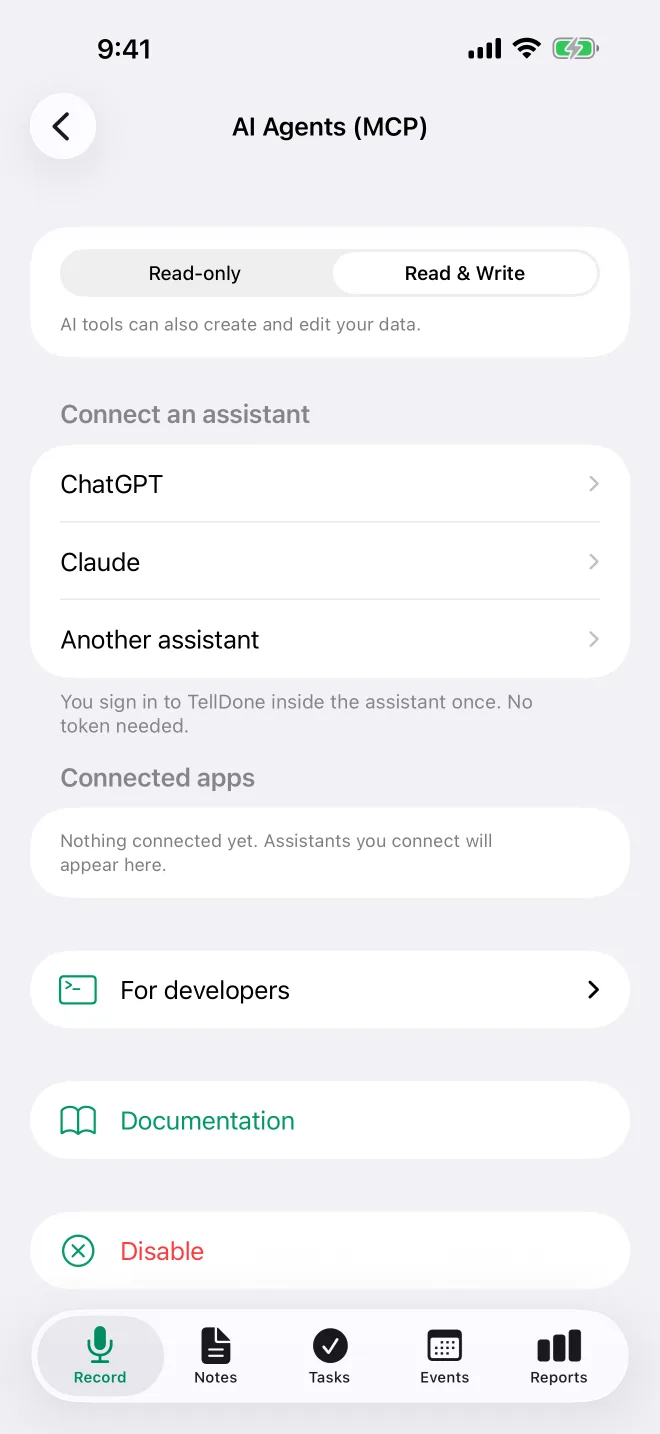
En el iPhone, Ajustes > Integraciones > Agentes IA (MCP) abre la pantalla de configuración de MCP con tu token de acceso oculto por defecto:
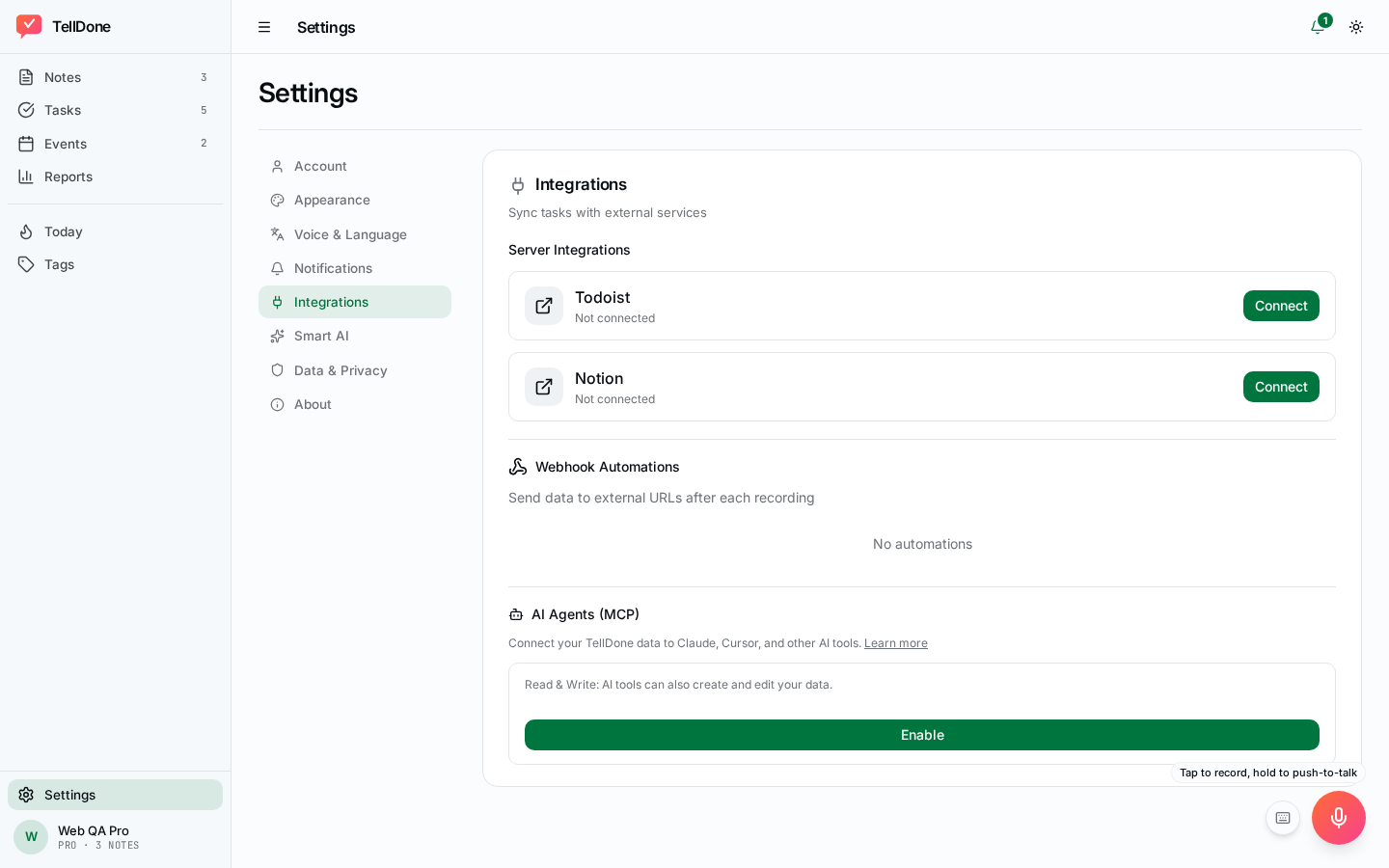
Y en la web:
Dos formas de conectar
Hay dos formas de conectar un cliente de IA:
- Iniciar sesión con TellDone (OAuth) (recomendada): inicias sesión con tu cuenta de TellDone y apruebas lo que pide la app. ChatGPT y Claude usan este método, y no hay ningún token que copiar.
- Token Bearer: copia tu token de acceso desde Ajustes y pégalo en la configuración de tu cliente. Es lo más sencillo para scripts, herramientas de línea de comandos y clientes que no tienen un flujo OAuth integrado.
| Cliente | Recomendado |
|---|---|
| ChatGPT (chatgpt.com o la app de escritorio de ChatGPT, no la app móvil) | OAuth: añade un servidor MCP personalizado con la URL de MCP y luego inicia sesión |
| Claude (sitio web, Desktop, app para iPhone) / Cowork | OAuth: añade un conector personalizado con la URL de MCP y luego inicia sesión |
| Claude Code (CLI) | Token Bearer por ahora: añade el encabezado Authorization con tu token |
| Scripts o tu propio código | Token Bearer: lo más sencillo de automatizar |
| Un cliente que solo permite elegir entre un directorio de conectores publicados | Añade TellDone como conector personalizado con la URL de MCP, o usa un token Bearer. TellDone todavía no está en ningún directorio de conectores |
Requisitos del plan
| Plan | MCP |
|---|---|
| Free | Solo lectura (10 herramientas de lectura), 100 solicitudes al día |
| Basic | Solo lectura (10 herramientas de lectura), sin límite diario |
| Pro | Lectura y escritura (27 herramientas): puede cambiar al modo de solo lectura |
| Ultra | Lectura y escritura (27 herramientas): puede cambiar al modo de solo lectura |
El límite de 100 solicitudes al día de Free cuenta solo las llamadas a herramientas. Conectar, iniciar sesión y listar las herramientas no cuentan. El día sigue la zona horaria guardada en tu cuenta y se restablece a medianoche. Cuando llegas al límite, tu asistente recibe un mensaje que lo indica. Las herramientas de escritura se rechazan en Free y Basic. Con un token de acceso, responden que la conexión es de solo lectura y que crear y editar requiere Pro o superior. Con inicio de sesión (OAuth), la mayoría responde "Insufficient scope", porque las conexiones de Free y Basic nunca reciben permisos de escritura.
La pantalla de la app
Abre Ajustes > Integraciones y, en la sección Agentes IA, toca Agentes IA (MCP). La pantalla dice "Deja que ChatGPT, Claude y otros asistentes de IA trabajen con tus notas, tareas y eventos de TellDone." y muestra tu plan:
- Free: "Tu plan: acceso de solo lectura, 100 solicitudes al día. Escribir viene con Pro."
- Basic: "Tu plan: acceso de solo lectura"
- Pro y Ultra: "Tu plan: acceso de lectura y escritura"
Mientras MCP está desactivado, toca Activar para encenderlo.
Una vez activado, la pantalla muestra:
- Modo de acceso (Pro y Ultra): elige Solo lectura o Lectura y escritura cuando quieras.
- Conectar un asistente: pasos para ChatGPT, Claude y Otro asistente. Inicias sesión en TellDone dentro del asistente, así que no hace falta ningún token.
- Aplicaciones conectadas: los asistentes que has conectado, cada uno con un botón Desconectar. Se queda vacía hasta la primera conexión.
- Para desarrolladores (plegada por defecto): el campo Token de acceso (oculto, con Mostrar / Ocultar y Copiar), Regenerar token y un selector Claude Code / Cursor / Otro con texto ya preparado y su propio botón Copiar. Claude Code te da el comando
claude mcp add, Cursor te da el JSON para.cursor/mcp.jsony Otro lista la dirección del servidor, la opción de inicio de sesión con OAuth y el encabezadoAuthorization: Bearer. Mientras el token está oculto, los fragmentos muestranYOUR_TOKEN. Toca Mostrar y contendrán tu token real.
La web tiene los mismos controles con otra disposición, sin la sección plegada para desarrolladores: la dirección OAuth con un botón Copiar, los controles de tu token, Aplicaciones conectadas con Desconectar y Configuración manual con token Bearer con seis clientes a elegir (Claude Code, Cursor, Windsurf, Codex, OpenClaw y cURL). En la web, los fragmentos siempre contienen tu token real, incluso con el campo del token oculto, así que trátalos como si fueran el propio token.
- Documentación: un enlace a esta página.
- Desactivar: apaga MCP. Lo confirmas con "Esto revocará el acceso de todas las herramientas de IA conectadas." Tu token se elimina y todas las conexiones se detienen. Si vuelves a activar MCP, recibes un token nuevo y las apps conectadas con inicio de sesión (OAuth) vuelven a funcionar sin iniciar sesión otra vez. Para quitar una app definitivamente, toca Desconectar en Aplicaciones conectadas.
Mantén tu token de acceso en privado. Cualquiera que tenga el token puede acceder a tus datos de TellDone. Toca Regenerar token si alguna vez sospechas que se ha filtrado.
Cómo activarlo
Puedes configurar MCP desde cualquiera de las dos plataformas:
- iPhone: Ajustes > Integraciones > Agentes IA (MCP)
- Web: app.telldone.app > Ajustes > Integraciones > Agentes IA (MCP)
Pasos:
- Toca Activar.
- En Pro y Ultra, elige tu modo de acceso (Solo lectura o Lectura y escritura). Free y Basic son de solo lectura.
- Para conectar ChatGPT o Claude, tócalo en Conectar un asistente y sigue los pasos (más abajo). No hace falta ningún token.
- Para un cliente de programación en el iPhone, abre Para desarrolladores, toca Mostrar, elige Claude Code, Cursor u Otro y toca Copiar debajo del fragmento. Si copias antes de tocar Mostrar, el fragmento lleva
YOUR_TOKENen lugar de tu token. En la web, elige tu cliente en Configuración manual con token Bearer y copia el fragmento; ya contiene tu token. - Pega el fragmento en tu cliente o en su archivo de configuración.
Conectar con OAuth
OAuth es el camino recomendado para ChatGPT, Claude y Cowork: inicias sesión con tu cuenta de TellDone en lugar de copiar un token.
URL de MCP para OAuth: https://api.telldone.app/mcp/user
El mismo servidor también responde en https://api.telldone.app/mcp/user/mcp, y las dos direcciones aceptan un token Bearer. Para el inicio de sesión con OAuth, usa la primera.
ChatGPT
Puedes añadir un servidor MCP personalizado en chatgpt.com o en la app de escritorio de ChatGPT. La app móvil de ChatGPT no puede añadir conectores personalizados, y la app de TellDone lo explica así: "La aplicación de ChatGPT solo añade conectores de su catálogo." Toca Enviar los pasos a mi ordenador en TellDone para recibir las instrucciones en un ordenador. Una vez añadido allí, TellDone también está disponible en la app móvil de ChatGPT.
Los pasos en la app:
- En un ordenador, abre chatgpt.com/plugins, haz clic en Add y elige Add custom MCP server.
- Ponle el nombre TellDone, pega la dirección de abajo (
https://api.telldone.app/mcp/user) y elige OAuth. - Confirma e instálalo, luego inicia sesión en TellDone y permite el acceso.
Consulta la guía de OpenAI sobre servidores MCP personalizados si cambian los nombres de los menús.
Claude (sitio web, Desktop, app para iPhone) / Cowork
Los pasos en la app:
- En Claude, abre Customize → Connectors y toca Add custom connector.
- Pega la dirección de abajo (
https://api.telldone.app/mcp/user). - Inicia sesión en TellDone y permite el acceso.
Cuando inicias sesión, la página de consentimiento de TellDone muestra qué app pide acceso y los permisos exactos que quiere. Inicia sesión con tu correo y tu contraseña de TellDone y haz clic en Permitir acceso, o toca Iniciar sesión con Apple o Iniciar sesión con Google, que aprueba el acceso en el mismo paso. Claude se conecta solo: no hay ningún token que copiar.
Si cambian los nombres de los menús, consulta la guía de Anthropic sobre añadir un conector personalizado.
Conectar con un token Bearer
Para Claude Code, Cursor y otros clientes sin inicio de sesión OAuth integrado, pega tu token de acceso directamente en la configuración del cliente. En todos los ejemplos de abajo, sustituye YOUR_TOKEN por el token de tus ajustes.
Claude Code (token Bearer)
claude mcp add --transport http telldone \
  https://api.telldone.app/mcp/user/mcp \
  --header "Authorization: Bearer YOUR_TOKEN"
No hace falta que lo escribas tú: en Ajustes > Integraciones > Agentes IA (MCP) > Para desarrolladores, toca Mostrar, elige Claude Code y toca Copiar. El comando copiado ya contiene tu token.
Cursor
Añádelo a .cursor/mcp.json (o cópialo desde Para desarrolladores > Cursor después de tocar Mostrar):
{
  "mcpServers": {
    "telldone": {
      "url": "https://api.telldone.app/mcp/user/mcp",
      "headers": { "Authorization": "Bearer YOUR_TOKEN" }
    }
  }
}
Otros clientes
Ajustes para otros clientes MCP:
Codex
Añádelo a codex.json:
{
  "mcpServers": {
    "telldone": {
      "type": "http",
      "url": "https://api.telldone.app/mcp/user/mcp",
      "headers": { "Authorization": "Bearer YOUR_TOKEN" }
    }
  }
}
OpenClaw
Settings > MCP Servers > Add:
- Name:
TellDone - URL:
https://api.telldone.app/mcp/user/mcp - Auth:
Bearer YOUR_TOKEN
Otros clientes MCP
Cualquier herramienta que admita MCP sobre HTTP puede conectarse. Usa el endpoint https://api.telldone.app/mcp/user/mcp con un encabezado de autorización Bearer YOUR_TOKEN.
Si tu cliente o proxy reserva el encabezado Authorization (por ejemplo, algunas pasarelas al estilo Smithery), envía el token en X-MCP-Token: YOUR_TOKEN. Los dos encabezados funcionan; si están los dos, gana Authorization.
Probar tu conexión
Puedes comprobar que tu token funciona con un sencillo comando cURL:
curl -X POST https://api.telldone.app/mcp/user/mcp \
  -H "Authorization: Bearer YOUR_TOKEN" \
  -H "Content-Type: application/json" \
  -H "Accept: application/json" \
  -d '{"jsonrpc":"2.0","method":"tools/list","id":1}'
Una respuesta correcta lista todas las herramientas disponibles.
Permisos (scopes)
Las conexiones OAuth tienen alcance limitado: durante el inicio de sesión ves exactamente qué pide el cliente y lo apruebas de forma explícita.
| Scope | Permite a la app... |
|---|---|
notes:read | Leer tus notas y abrir los detalles completos de una nota (la herramienta de búsqueda también necesita tasks:read y events:read) |
notes:write | Crear, editar y eliminar notas (process_note también necesita tasks:write y events:write) |
tasks:read / tasks:write | Leer / crear, editar, completar y eliminar tareas |
events:read / events:write | Leer / crear, editar y eliminar eventos |
reports:read | Leer tus informes diarios, semanales, mensuales y anuales |
tags:read / tags:write | Listar tus etiquetas / crear, fijar, eliminar y restaurar etiquetas |
profile:read | Leer la información de tu cuenta y tu suscripción |
offline_access | Mantener la sesión iniciada (emite un token de actualización para que no tengas que iniciar sesión otra vez en cada sesión) |
Los scopes limitan lo que puede hacer una conexión: una conexión que solo tiene notes:read no puede llamar a una herramienta de escritura. Tu plan impone un segundo límite además de ese.
Las conexiones con token Bearer no tienen scopes individuales: solo las regula el modo de lectura y escritura de tu plan.
Qué puedes hacer
Herramientas de lectura (10): todos los planes
| Herramienta | Qué hace |
|---|---|
| get_notes | Lista notas con filtros (etiquetas, rango de fechas, búsqueda de texto) |
| get_note | Muestra una sola nota con sus tareas y eventos hijos y la transcripción completa |
| get_notes_full | Obtiene varias notas con tareas y eventos incluidos en una sola llamada |
| get_tasks | Lista tareas filtradas por estado (por hacer, hechas, todas), etiquetas o fechas |
| get_events | Lista eventos de calendario y filtra por rango de fechas |
| get_reports | Lee tus informes diarios, semanales, mensuales y anuales (markdown completo) |
| get_tags | Muestra todas tus etiquetas ordenadas por uso |
| get_profile | Muestra la información de tu cuenta y cuántas notas, tareas y eventos tienes |
| search | Busca en notas, tareas y eventos (texto y búsqueda semántica para notas) |
| get_change_log | Muestra el historial de ediciones de una nota, tarea o evento, y si cada edición se ha deshecho |
La herramienta search admite búsqueda semántica para notas: encuentra resultados por significado, no solo por palabras clave. Por ejemplo, si buscas "reuniones sobre presupuesto", encontrará notas sobre conversaciones financieras aunque no contengan la palabra "presupuesto".
Herramientas de escritura (17): Pro y Ultra
| Herramienta | Qué hace |
|---|---|
| process_note | Proceso completo de IA: envía texto o audio y recibe una nota con tareas, eventos y etiquetas |
| create_note | Añade una nota de texto simple (sin análisis de IA) |
| create_task | Añade una tarea con prioridad, fecha límite, recordatorio y etiquetas |
| create_event | Añade un evento de calendario con fecha, hora, ubicación, recordatorios, asistentes y regla de repetición |
| update_note | Cambia el título, el resumen, el tipo, las etiquetas, la prioridad o el estado de una nota |
| update_task | Cambia el título, la descripción, la prioridad, la fecha límite, el recordatorio, las etiquetas o el estado de una tarea |
| complete_task | Marca una tarea como hecha |
| update_event | Cambia los detalles, la hora, la ubicación, los recordatorios, los asistentes, la regla de repetición, las etiquetas o el estado de un evento |
| delete_note | Elimina una nota. Sus tareas y eventos se conservan |
| delete_task | Elimina una tarea |
| delete_event | Elimina un evento |
| undo_change_log_entry | Deshace una sola edición registrada (hecha por la IA o por ti) y restaura el valor anterior del campo |
| restore_entity | Recupera una nota o tarea eliminada o archivada, o un evento eliminado o cancelado |
| create_tag | Crea una etiqueta nueva, o convierte una etiqueta sugerida automáticamente en permanente |
| set_tag_pinned | Fija o desfija una etiqueta para que aparezca arriba |
| delete_tag | Quita una etiqueta (se puede restaurar con restore_tag) |
| restore_tag | Recupera una etiqueta eliminada |
Todas las operaciones de escritura y eliminación aparecen al instante en tus dispositivos conectados (teléfono, app web).
Referencia de herramientas
get_notes
List notes with optional filtering. Date filters use recorded_at (when you recorded the voice note), or created_at for a note that has none.
| Parameter | Type | Default | Description |
|---|---|---|---|
limit | int | 20 | Number of notes to return (max 50) |
offset | int | 0 | Skip this many notes (for pagination, max 10000) |
tags | string | - | Filter by tags, comma-separated (matches any) |
search | string | - | Text search on title and summary |
date_from | string | - | Start date, YYYY-MM-DD (inclusive) |
date_to | string | - | End date, YYYY-MM-DD (exclusive) |
standalone_only | bool | false | When true, hides follow-up notes (notes attached to a parent note/task/event) and returns only standalone notes |
Returns: list of notes with id, title, summary, type, tags, priority, status, recorded_at, created_at.
get_note
Get a single note with its full transcript and all linked tasks and events.
| Parameter | Type | Description |
|---|---|---|
note_id | string | The note's UUID |
Returns: note with title, summary, transcript, type, tags, priority, status, metadata, created_at, plus tasks[] and events[] arrays.
Also returns transcript_speakers (speaker-labeled transcript turns, for meetings with several speakers - null otherwise), speaker_count (null unless the recording was split by speaker), and parent_note_id/parent_task_id/parent_event_id (set when this note is a follow-up edit of another item). Each tasks[]/events[] entry also includes reminders_at/recurrence_rule (tasks) or reminder_minutes/attendees/recurrence_rule (events).
get_notes_full
Get multiple notes with their tasks and events in a single call. Same filters as get_notes except search, and each note includes embedded tasks[] and events[].
| Parameter | Type | Default | Description |
|---|---|---|---|
limit | int | 10 | Number of notes (max 20) |
offset | int | 0 | Skip this many notes |
tags | string | - | Filter by tags |
date_from | string | - | Start date, YYYY-MM-DD |
date_to | string | - | End date, YYYY-MM-DD |
standalone_only | bool | false | When true, hides follow-up notes (notes attached to a parent note/task/event) and returns only standalone notes |
get_tasks
List tasks with filtering.
| Parameter | Type | Default | Description |
|---|---|---|---|
status | string | "todo" | Filter: todo, done, or all |
limit | int | 30 | Number of tasks (max 100) |
offset | int | 0 | Skip this many tasks |
tags | string | - | Filter by tags, comma-separated |
date_from | string | - | Start date, YYYY-MM-DD (filters by deadline; tasks without a deadline are excluded) |
date_to | string | - | End date, YYYY-MM-DD (filters by deadline; tasks without a deadline are excluded) |
Returns: list of tasks with id, title, description, status, priority, tags, deadline, reminder_at, reminders_at, completed_at, completed_by, source, created_at. reminder_at mirrors the first entry of reminders_at for backward compatibility - use reminders_at to see all of a task's reminders.
get_events
List calendar events with date range filtering.
| Parameter | Type | Default | Description |
|---|---|---|---|
limit | int | 30 | Number of events (max 100) |
offset | int | 0 | Skip this many events |
date_from | string | - | First day, YYYY-MM-DD, in your own time zone (inclusive). Events that overlap the range are included, so a multi-day event shows on every day it covers |
date_to | string | - | Last day, YYYY-MM-DD, in your own time zone (inclusive) |
Returns: list of events with id, title, description, status, start_at, end_at, location, is_all_day, tags, note_id, reminder_minutes, attendees, recurrence_rule, created_at.
get_reports
Get your AI-generated reports with full markdown content.
| Parameter | Type | Default | Description |
|---|---|---|---|
report_type | string | "daily" | Type: daily, weekly, monthly, or yearly |
limit | int | 5 | Number of reports (max 10) |
Returns: list of reports with id, type, period_start, period_end, content_md, created_at.
Monthly reports are long (often well over 1,000 words). Use limit=1 if your AI tool has a tight context window.
get_tags
Get all your tags, sorted by pinned first, then by usage count.
No parameters. Returns up to 100 tags, each with tag, usage_count, is_pinned, is_manual.
get_profile
Get your account info and how many notes, tasks and events you have.
No parameters. Returns email, display_name, locale, transcription_locale, timezone, subscription, mcp_mode, created_at, and stats (note/task/event counts).
search
Search across notes, tasks, and events at once. For notes, supports both text search and semantic search (finds results by meaning using AI embeddings).
| Parameter | Type | Default | Description |
|---|---|---|---|
query | string | required | Search text (max 500 characters) |
limit | int | 20 | Max results per type (max 20) |
semantic | bool | true | Enable semantic search for notes |
Returns results grouped by type: notes[], tasks[], events[]. Each result has id, type, title, detail, created_at.
Set semantic=false for faster text-only search.
get_change_log
See the edit history of a note, task, or event - every AI-made follow-up edit and every manual edit you made yourself, newest first.
| Parameter | Type | Default | Description |
|---|---|---|---|
entity | string | required | notes, tasks, or events |
entity_id | string | required | The item's UUID |
include_manual | bool | false | Also include your own manual edits, not just AI-made ones |
Returns: list of change entries with id (use this as entry_id for undo), field_name, old_value, new_value, source (follow_up, smart_context, correction_sync for a name fix TellDone carried across a note, or manual), origin_note_id, edited_at, and reverted_at (set once undone).
process_note (Pro and Ultra)
Full AI pipeline - works the same as recording in the app. Send text or audio, and TellDone will transcribe, analyze with AI, and create a structured note with extracted tasks, events, tags, and embeddings.
This tool is asynchronous: it returns immediately with an audio_id and processes in the background. Results arrive via real-time sync to your connected devices, or you can poll with get_notes().
| Parameter | Type | Description |
|---|---|---|
text | string | Required. Text to analyze. If it is not empty, it is used as the transcript and any audio you send is not transcribed; send "" to have the audio transcribed. Limit when no audio is sent: Pro 20,000 / Ultra 50,000 characters |
audio_base64 | string | Base64-encoded audio file. The whole request is limited to 10 MB, so the audio itself can be about 7 MB. It is transcribed only when text is empty |
audio_format | string | m4a, ogg, wav, mp3, aac, or webm (default: m4a) |
parent_task_id | string | UUID of a task this is a follow-up to |
parent_note_id | string | UUID of a note this is a follow-up to |
parent_event_id | string | UUID of an event this is a follow-up to |
Always send text. To have TellDone transcribe audio, send audio_base64 with text set to an empty string (""). If text is not empty, TellDone uses it as the transcript and does not transcribe the audio. Set at most one of the three parent IDs.
Returns: {"audio_id": "...", "status": "processing", "mode": "text-only"} or "mode": "audio+stt" if audio was provided.
process_note is subject to your plan's quotas (uploads per day, notes per month, max text length). get_profile shows only how many notes, tasks and events you have, not your limits. Check your usage in the app under Settings > Usage.
create_note (Pro and Ultra)
Create a plain text note instantly. Does not trigger AI analysis - no tasks or events are extracted. Use process_note when you want TellDone to find tasks and events for you.
| Parameter | Type | Limit | Description |
|---|---|---|---|
title | string | 200 chars | Required |
summary | string | 1000 chars | Optional. Short teaser (1-3 sentences). Used in your reports, so keep it short |
transcript | string | plan-based | Optional. Long-form body shown in the note detail. Not included in reports. Limits: Pro 20,000 / Ultra 50,000 chars |
type | string | - | Optional. task, idea, info (default), status, meeting, event, or reflection |
tags | string | 20 tags | Comma-separated, optional |
suppress_external_sync | boolean | - | Optional, default false. Set true for imported or bulk items: the item is then not sent to your connected apps or automations |
create_task (Pro and Ultra)
Create a new task. The task is also created in your connected Todoist, Notion or Microsoft To Do, and your automations receive task.created. This does not happen when you pass suppress_external_sync: true.
| Parameter | Type | Limit | Description |
|---|---|---|---|
title | string | 200 chars | Required |
description | string | 2000 chars | Optional |
priority | string | - | low, medium (default), or high |
deadline | string | - | YYYY-MM-DD, optional |
reminder_at | string | - | ISO 8601 datetime (for example 2026-04-15T09:00:00Z), optional |
tags | string | 20 tags | Comma-separated, optional |
note_id | string | - | UUID to link task to a parent note, optional |
suppress_external_sync | boolean | - | Optional, default false. Set true for imported or bulk items: the item is then not sent to your connected apps or automations |
create_event (Pro and Ultra)
Create a calendar event. The event is also created in your connected Notion, and your automations receive calendar_event.created. This does not happen when you pass suppress_external_sync: true.
| Parameter | Type | Limit | Description |
|---|---|---|---|
title | string | 200 chars | Required |
start_at | string | - | ISO 8601 datetime, required |
end_at | string | - | ISO 8601 datetime (default: start + 1 hour; for an all-day event, one day) |
description | string | 2000 chars | Optional |
location | string | 200 chars | Optional |
is_all_day | bool | - | Default: false |
tags | string | 20 tags | Comma-separated, optional |
reminder_minutes | string | - | Comma-separated minutes before event (for example 15,60), optional |
attendees | string | - | Comma-separated names or emails, optional |
recurrence_rule | string | - | RRULE string (for example FREQ=WEEKLY;BYDAY=MO,WE,FR), optional. Rules more frequent than hourly, or that can never happen, are refused |
note_id | string | - | UUID to link event to a parent note, optional |
suppress_external_sync | boolean | - | Optional, default false. Set true for imported or bulk items: the item is then not sent to your connected apps or automations |
update_note (Pro and Ultra)
Update one or more fields on an existing note. Only fields you provide are changed. This works exactly like editing the note in the app: its title, summary, tags and type reach its Notion page, your automations receive note.updated, and the edit appears in the history, where it can be undone. A transcript change is saved and sent to Notion too, but is not in the history.
| Parameter | Type | Description |
|---|---|---|
note_id | string | Required, the note's UUID |
title | string | New title (max 200 chars) |
summary | string | New summary (max 1000 chars, pass a space " " to clear) |
transcript | string | New transcript (plan-based limit, pass a space " " to clear) |
type | string | task, idea, info, status, meeting, event, or reflection |
tags | string | Comma-separated tags (replaces all existing tags, max 20) |
priority | string | low, medium, or high |
status | string | active or archived |
For notes created by the voice pipeline, transcript is the original speech-to-text output. Overwriting it replaces your original words. To keep them, add to the transcript instead of replacing it.
update_task (Pro and Ultra)
Update one or more fields on an existing task. Only fields you provide are changed. This works exactly like editing the task in the app: the change reaches its copies in Todoist, Notion and Microsoft To Do, your automations receive task.updated, and the edit appears in the task's history, where it can be undone. Setting status to done completes it like complete_task. A deadline can be a date or a full date and time (its date is used). Each tag can be up to 50 characters.
| Parameter | Type | Description |
|---|---|---|
task_id | string | Required, the task's UUID |
title | string | New title |
description | string | New description (pass a space " " to clear) |
priority | string | low, medium, or high |
deadline | string | YYYY-MM-DD. This tool can't clear a deadline; clear it in the app |
status | string | todo or done |
tags | string | Comma-separated tags (replaces all existing tags, max 20) |
reminder_at | string | ISO 8601 datetime (pass a space to clear) |
Setting status to done also records when and how the task was completed.
complete_task (Pro and Ultra)
Shortcut to mark a task as done.
| Parameter | Type | Description |
|---|---|---|
task_id | string | Required, the task's UUID |
Returns an error if the task doesn't exist or is already completed.
update_event (Pro and Ultra)
Update one or more fields on an existing event. Only fields you provide are changed. This works exactly like editing the event in the app: the change reaches its Notion page, your automations receive calendar_event.updated, and the edit appears in the history, where it can be undone.
| Parameter | Type | Description |
|---|---|---|
event_id | string | Required, the event's UUID |
title | string | New title |
description | string | New description (pass a space to clear) |
start_at | string | New start time (ISO 8601) |
end_at | string | New end time (ISO 8601) |
location | string | New location (pass a space to clear) |
status | string | confirmed, tentative, or cancelled |
tags | string | Comma-separated tags (replaces all existing tags, max 20) |
is_all_day | string | "true" or "false" |
reminder_minutes | string | Comma-separated minutes before event (for example 15,60, pass a space to clear) |
attendees | string | Comma-separated names or emails (pass a space to clear) |
recurrence_rule | string | RRULE string (pass a space to clear) |
delete_note (Pro and Ultra)
Delete a note. Only the note is deleted: its tasks and events stay. This works exactly like deleting it in the app: your automations receive note.deleted. A copy of the note in Notion is not removed (the app does not remove it either).
| Parameter | Type | Description |
|---|---|---|
note_id | string | Required, the note's UUID |
delete_task (Pro and Ultra)
Delete a task. This works exactly like deleting it in the app: its copies in Todoist, Notion and Microsoft To Do are deleted too, and your automations receive task.deleted. Bring it back with restore_entity.
| Parameter | Type | Description |
|---|---|---|
task_id | string | Required, the task's UUID |
delete_event (Pro and Ultra)
Delete an event. This works exactly like deleting it in the app: your automations receive calendar_event.deleted. The event's page in Notion is not removed (the app does not remove it either).
| Parameter | Type | Description |
|---|---|---|
event_id | string | Required, the event's UUID |
undo_change_log_entry (Pro and Ultra)
Undo a single tracked edit - restores the field to its value before that edit, whether the edit was made by the AI (from a follow-up recording) or by you directly.
| Parameter | Type | Description |
|---|---|---|
entity | string | Required, notes, tasks, or events |
entity_id | string | Required, the item's UUID |
entry_id | string | Required, the change entry's id from get_change_log |
Returns: {"entry_id", "entity_type", "entity_id", "field_name", "restored_value", "reverted_at"}. Undoing the same entry twice returns an error - it's already undone.
restore_entity (Pro and Ultra)
Bring back a deleted or archived note or task, or a deleted or canceled event.
| Parameter | Type | Description |
|---|---|---|
entity | string | Required, notes, tasks, or events |
entity_id | string | Required, the item's UUID |
Returns: the restored item as JSON.
create_tag (Pro and Ultra)
Create a new tag, or turn an existing auto-suggested tag into a permanent one.
| Parameter | Type | Description |
|---|---|---|
tag | string | Required, 1-50 characters (stored lowercase) |
category | string | Optional |
set_tag_pinned (Pro and Ultra)
Pin or unpin a tag so it sorts to the top of your tag list.
| Parameter | Type | Description |
|---|---|---|
tag | string | Required |
pinned | bool | Required |
Tags containing a / character can't be pinned.
delete_tag (Pro and Ultra)
Remove a tag. Can be brought back with restore_tag.
| Parameter | Type | Description |
|---|---|---|
tag | string | Required |
restore_tag (Pro and Ultra)
Bring back a deleted tag.
| Parameter | Type | Description |
|---|---|---|
tag | string | Required |
Límites de entrada
| Field | Max length | Used in |
|---|---|---|
| title | 200 characters | create/update note, task, event |
| description | 2,000 characters | create/update task, event |
| summary | 1,000 characters (hard) | create/update note. Used in your reports, so keep it short |
| transcript | plan-based: Pro 20,000 / Ultra 50,000 | create/update note. Long-form body, not in reports |
| text | plan-based: Pro 20,000 / Ultra 50,000 (when no audio is sent) | process_note |
| location | 200 characters | create/update event |
| tags | 20 tags | create/update note, task, event |
| search query | 500 characters | search |
| audio_base64 | about 7 MB of audio (the whole request is limited to 10 MB) | process_note |
Si superas un límite, la herramienta devuelve un mensaje de error como "title too long (max 200 chars, got 250)".
Gestión de errores
La mayoría de las herramientas devuelven los errores como JSON:
{"error": "description of what went wrong"}
Los errores de plan, de scope y de límite de entrada llegan como un error de herramienta con el mismo mensaje.
Errores comunes:
| Error | When |
|---|---|
"This TellDone connection is read-only. Creating and editing needs the Pro or Ultra plan." | Write tool called in read-only mode (Free and Basic, or Pro and Ultra switched to read-only) |
"Daily limit reached: the Free plan includes 100 TellDone requests a day..." | Free plan used up its 100 requests for the day |
"Daily limit reached (N/M today)" | You created as many items through AI assistants today as your plan allows (process_note, create_note, create_task and create_event each count) |
"Notes limit reached (X/Y this month)" | Your plan's monthly note limit is used up |
"Invalid note_id format" | Non-UUID string passed as ID |
"Note not found" | ID doesn't exist or belongs to another user |
"Task not found or already completed" | complete_task on non-existent or already done task |
"title too long (max 200 chars, got N)" | Input limit exceeded |
"Too many tags (max 20)" | More than 20 tags provided |
Errores a nivel HTTP:
| Code | Meaning |
|---|---|
| 401 | Invalid, revoked or deleted token (disabling MCP deletes your token, and regenerating replaces it) |
| 429 | Rate limit exceeded (5 req/s, burst up to 20) |
En Free, llegar al límite de 100 solicitudes al día se notifica como un mensaje de error de la herramienta (no como un código HTTP) y se restablece a medianoche en la zona horaria guardada en tu cuenta.
Ejemplos de uso
Todos los ejemplos usan cURL con el protocolo JSON-RPC de MCP. Sustituye YOUR_TOKEN por tu token de acceso.
Leer datos
# Get your profile and stats
curl -s -X POST https://api.telldone.app/mcp/user/mcp \
  -H "Authorization: Bearer YOUR_TOKEN" \
  -H "Content-Type: application/json" \
  -H "Accept: application/json" \
  -d '{"jsonrpc":"2.0","id":1,"method":"tools/call",
       "params":{"name":"get_profile"}}'

# List recent notes (limit 5, from April 2026)
curl -s -X POST https://api.telldone.app/mcp/user/mcp \
  -H "Authorization: Bearer YOUR_TOKEN" \
  -H "Content-Type: application/json" \
  -H "Accept: application/json" \
  -d '{"jsonrpc":"2.0","id":2,"method":"tools/call",
       "params":{"name":"get_notes","arguments":{"limit":5,"date_from":"2026-04-01"}}}'

# Search notes (hybrid text + semantic)
curl -s -X POST https://api.telldone.app/mcp/user/mcp \
  -H "Authorization: Bearer YOUR_TOKEN" \
  -H "Content-Type: application/json" \
  -H "Accept: application/json" \
  -d '{"jsonrpc":"2.0","id":3,"method":"tools/call",
       "params":{"name":"search","arguments":{"query":"project deadline","limit":5}}}'
Escribir datos (Pro y Ultra)
# Process a note through full AI pipeline (extracts tasks + events)
curl -s -X POST https://api.telldone.app/mcp/user/mcp \
  -H "Authorization: Bearer YOUR_TOKEN" \
  -H "Content-Type: application/json" \
  -H "Accept: application/json" \
  -d '{"jsonrpc":"2.0","id":10,"method":"tools/call",
       "params":{"name":"process_note","arguments":{"text":"Need to buy groceries tomorrow. Meeting with Katie at 3pm at the cafe to discuss the project."}}}'

# Create a task with deadline and reminder
curl -s -X POST https://api.telldone.app/mcp/user/mcp \
  -H "Authorization: Bearer YOUR_TOKEN" \
  -H "Content-Type: application/json" \
  -H "Accept: application/json" \
  -d '{"jsonrpc":"2.0","id":11,"method":"tools/call",
       "params":{"name":"create_task","arguments":{"title":"Review PR","priority":"high","deadline":"2026-04-15","reminder_at":"2026-04-15T09:00:00Z","tags":"dev"}}}'

# Create a repeating event with reminders and attendees
curl -s -X POST https://api.telldone.app/mcp/user/mcp \
  -H "Authorization: Bearer YOUR_TOKEN" \
  -H "Content-Type: application/json" \
  -H "Accept: application/json" \
  -d '{"jsonrpc":"2.0","id":12,"method":"tools/call",
       "params":{"name":"create_event","arguments":{"title":"Team standup","start_at":"2026-04-12T10:00:00Z","reminder_minutes":"15","attendees":"Katie,John","recurrence_rule":"FREQ=DAILY;BYDAY=MO,TU,WE,TH,FR","tags":"meeting"}}}'

# Complete a task
curl -s -X POST https://api.telldone.app/mcp/user/mcp \
  -H "Authorization: Bearer YOUR_TOKEN" \
  -H "Content-Type: application/json" \
  -H "Accept: application/json" \
  -d '{"jsonrpc":"2.0","id":13,"method":"tools/call",
       "params":{"name":"complete_task","arguments":{"task_id":"<task-uuid>"}}}'
Una respuesta correcta se ve así:
{
  "jsonrpc": "2.0",
  "id": 11,
  "result": {
    "content": [{"type": "text", "text": "{\"id\":\"...\",\"title\":\"Review PR\",\"status\":\"todo\"}"}]
  }
}
Las herramientas de escritura y actualización devuelven respuestas cortas, sobre todo id, title y status. Las de eliminación devuelven id y deleted. Para obtener todos los detalles (etiquetas, prioridad, fecha límite, etc.) después de escribir, haz una llamada de lectura posterior como get_tasks o get_note.
Gestión del token
| Acción | Cómo |
|---|---|
| Ver el token | En el iPhone: Ajustes > Integraciones > Agentes IA (MCP) > Para desarrolladores (o en la web, Ajustes > Integraciones > Agentes IA (MCP)), toca Mostrar |
| Copiar el token | Toca Copiar junto al token |
| Regenerar | Toca Regenerar token y confirma. El token anterior deja de funcionar de inmediato. Los asistentes conectados con inicio de sesión OAuth no se ven afectados; desconéctalos en Aplicaciones conectadas |
| Cambiar el modo | Pro y Ultra: elige Solo lectura o Lectura y escritura. Free y Basic son siempre de solo lectura |
| Desactivar | Toca Desactivar y confirma ("Esto revocará el acceso de todas las herramientas de IA conectadas."). Tu token se elimina y todas las conexiones se detienen. Si vuelves a activar MCP, recibes un token nuevo y las apps conectadas con inicio de sesión (OAuth) vuelven a funcionar sin iniciar sesión otra vez. Para quitar una app definitivamente, toca Desconectar en Aplicaciones conectadas |
Qué puedes pedirle a tu agente de IA
Una vez conectado, pídele a tu herramienta de IA cosas como:
Repasar tu día:
- "¿En qué trabajé hoy?"
- "Muéstrame mis notas de esta semana"
- "¿Qué tareas están atrasadas?"
Gestionar tareas:
- "Crea una tarea: revisar el informe trimestral, prioridad alta, fecha límite el viernes"
- "Marca la tarea de Figma como hecha"
- "¿En qué tareas estoy trabajando?"
Buscar y analizar:
- "Encuentra todas las notas sobre la estrategia de marketing"
- "¿Qué eventos tengo la semana que viene?"
- "Resume mis informes diarios de la semana pasada"
Planificar:
- "Crea un evento: reunión de equipo mañana a las 10"
- "¿Qué tengo en el calendario esta semana?"
- "Muéstrame mis etiquetas principales: ¿en qué dedico más tiempo?"
Tu asistente puede leer tus notas, tareas, eventos e informes, y responder preguntas complejas combinando información de varias herramientas. En Pro y Ultra con Lectura y escritura activada, también puede crearlos, actualizarlos y eliminarlos.
Conviene saber
- Integraciones y automatizaciones:
process_notefunciona como una grabación, así que su nota, sus tareas y sus eventos van a tus integraciones conectadas y a tus automatizaciones con webhooks. Los elementos que creas, editas o eliminas con las demás herramientas de escritura se comportan exactamente igual que en la app: llegan a tus integraciones conectadas (los eventos y los cambios en notas solo llegan a Notion) y a tus automatizaciones. Restaurar una tarea conrestore_entity, o deshacer su finalización conundo_change_log_entry, también la reabre en las integraciones con las que estaba sincronizada. - Cambios hechos por un asistente de IA: en el historial del elemento aparecen marcados como hechos por un asistente. No se usan para enseñar al reconocimiento de voz de TellDone ni se copian a los demás elementos de la nota. Los cambios hechos a través de un asistente comparten el límite de la app de 30 cambios por minuto.
- Búsqueda semántica: las notas creadas con
process_noteocreate_notetienen embeddings, así que aparecen en la búsqueda semántica tras un breve retraso. - Filtros de fecha: en las notas, las fechas son días UTC. En los eventos, las fechas son tus propios días locales, y se incluye un evento que se solapa con el rango. En las tareas, el filtro es la fecha límite.
Seguridad
- Cada usuario recibe un token de acceso único de 384 bits
- Tu token se revoca al instante cuando desactivas MCP o lo regeneras
- Cada solicitud está limitada a tu cuenta, así que tu agente solo puede acceder a tus propios datos
- La conexión usa HTTPS con límite de frecuencia (5 solicitudes/s, ráfagas de hasta 20)
- Las conexiones OAuth usan PKCE con códigos de autorización de un solo uso y tokens de acceso de corta duración: puedes revocar una conexión en cualquier momento desde la app
Para un análisis técnico en profundidad (endpoints de descubrimiento, duración de los tokens, el flujo OAuth completo), consulta nuestra referencia del conector de código abierto en github.com/exp78/telldone-mcp, o consulta directamente https://api.telldone.app/.well-known/oauth-protected-resource.
Privacidad y flujo de datos
Una herramienta de IA conectada recibe tus datos solo cuando llama a TellDone, normalmente porque le has preguntado algo. Recibe únicamente las respuestas a esas llamadas, dentro de los permisos que aprobaste. Para limitar el acceso, cambia a Solo lectura, desconecta la app en Aplicaciones conectadas, o regenera o desactiva tu token de acceso en Ajustes. Consulta la Política de privacidad para ver todos los detalles, o escribe a support@telldone.app si tienes dudas.
Solución de problemas
| Síntoma | Causa / solución |
|---|---|
| La página de consentimiento de OAuth dice "Wrong email or password" | Usa el correo y la contraseña con los que inicias sesión en la app, o elige Iniciar sesión con Apple / Iniciar sesión con Google en la misma página. |
| Está conectado, pero la IA no puede crear ni editar nada | Tu plan es Free o Basic (solo lectura), tu modo es de solo lectura, o la conexión no tiene permisos de escritura. Si te conectaste antes de mejorar de plan, desconecta la app en Aplicaciones conectadas y vuelve a conectarla. Puedes comprobar tu modo en Ajustes. |
| Error "Insufficient scope" de una herramienta | La conexión no tiene ese permiso. En Free y Basic nunca se conceden permisos de escritura, así que crear y editar requiere Pro o Ultra. Si te conectaste antes de mejorar de plan, desconecta la app en Aplicaciones conectadas y vuelve a conectarla. |
El fragmento copiado dice YOUR_TOKEN y el cliente no puede conectarse | Lo copiaste con el token oculto. En Para desarrolladores, toca Mostrar y copia el fragmento de nuevo. |
| Las herramientas no aparecen | MCP no está activado en tu cuenta (Ajustes > Integraciones > Agentes IA (MCP) > Activar). |
| "Daily limit reached" | Dos límites usan este mensaje. "Daily limit reached: the Free plan includes 100 TellDone requests a day" es el límite de solicitudes de Free. "Daily limit reached (N/M today)" significa que hoy has creado tantos elementos con asistentes de IA como permite tu plan: process_note, create_note, create_task y create_event cuentan cada uno, también en Pro y Ultra. Los dos se restablecen a medianoche en la zona horaria guardada en tu cuenta. |
| Mi cliente solo me deja elegir de una lista de conectores y TellDone no está | TellDone todavía no está en el directorio de conectores de ningún cliente: añádelo como conector personalizado con la URL de MCP, o usa el método del token Bearer. |
Ver también
- Automatizaciones con webhooks: envía datos a servicios externos automáticamente
- Todoist: sincronización de tareas en ambos sentidos dedicada
- Notion: integración dedicada de Notion